
LearnGuides
Google Postmaster Tools: Complete Guide (2026)

By Rahul LakhaneyPublished on: Mar 31, 2026 · 18 min read · Last reviewed: Mar 2026
TL;DR
Google Postmaster Tools is the only free tool that shows you exactly how Gmail sees your domain. This guide covers setup, dashboard interpretation, and how to use the data to fix deliverability issues before they tank your campaigns.
Google Postmaster Tools (GPT) is a free dashboard from Google that gives email senders visibility into how Gmail treats their messages. It is the single most important free deliverability tool available.
Unlike third-party tools that estimate reputation, Postmaster Tools shows you Google's actual data about your domain and IP. This is first-party data from the world's largest email provider.
| Dashboard | What It Shows | Why It Matters |
|---|---|---|
| Spam Rate | % of emails marked spam by recipients | Must stay under 0.3%, ideally under 0.1% |
| IP Reputation | Reputation of your sending IPs | Affects inbox placement across all your domains |
| Domain Reputation | Reputation of your sending domain | The most important metric for email |
| Authentication | SPF, DKIM, DMARC pass rates | Identifies authentication failures |
| Encryption | TLS encryption percentage | Should be 100% for modern senders |
| Delivery Errors | Temporary and permanent failures | Identifies infrastructure issues |
Important limitation: Postmaster Tools only shows data when you send a sufficient volume to Gmail addresses. Google requires roughly 100-200 emails per day to a domain before dashboards populate. For emailers with smaller volumes, data may appear intermittently.
Source: Google Postmaster Tools Help. Google's official documentation for senders.
InboxKit + Postmaster Tools
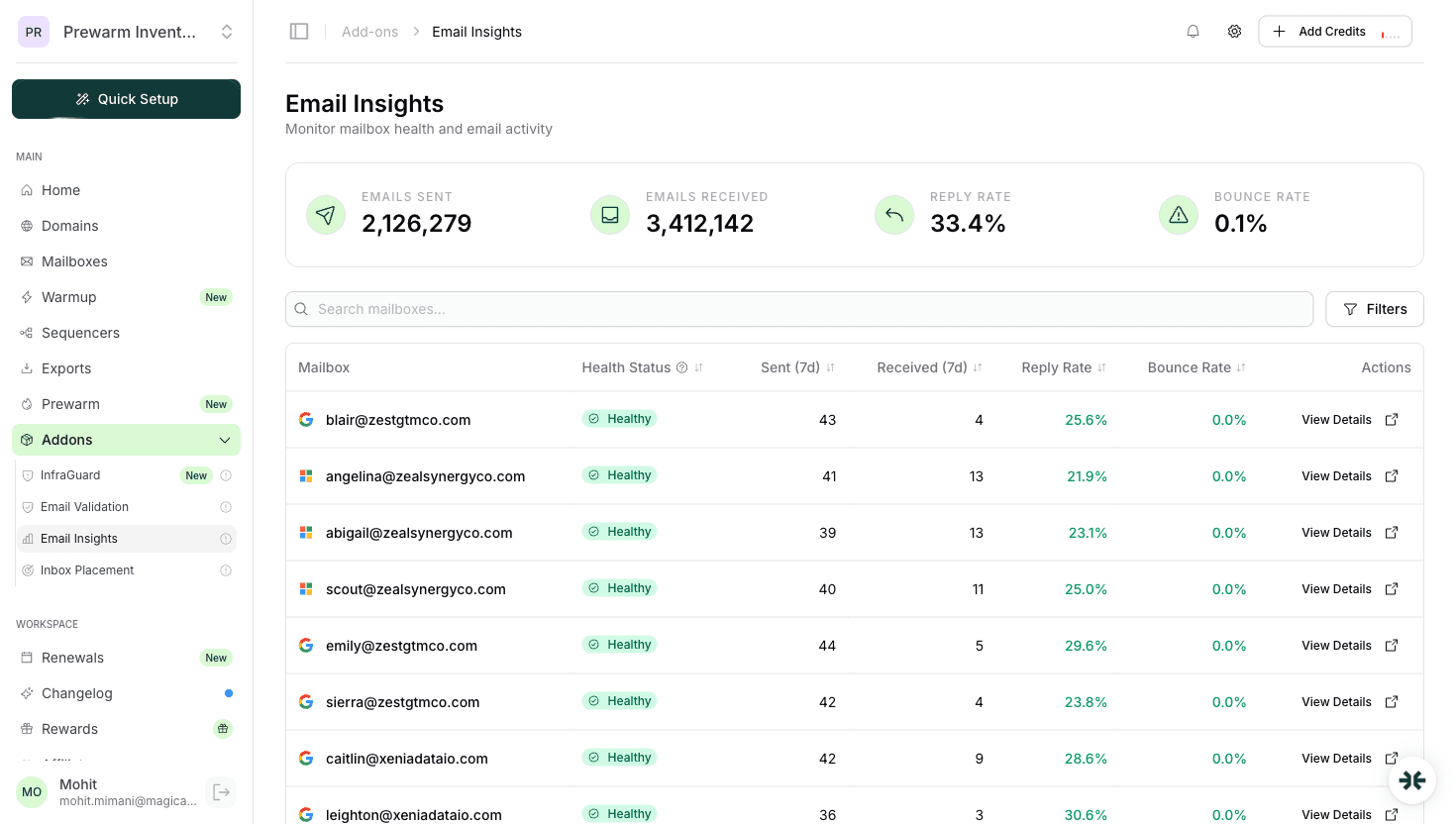
InboxKit's InfraGuard monitoring complements Postmaster Tools by tracking metrics Google does not show. blacklist status, DNS health, and cross-provider deliverability. Use both together for complete visibility. See docs.inboxkit.com for setup.
Setup takes under 5 minutes. Here is the exact process:
; Example verification TXT record
@ IN TXT "google-site-verification=abc123xyz456"
For agencies managing multiple domains: You can add all client domains to a single Postmaster Tools account. There is no limit on the number of domains. This makes it practical to monitor 50+ domains from one dashboard.
Common setup mistake: Adding the verification record to the wrong domain or subdomain. The record must go on the exact domain you send from. If you send from outreach.yourdomain.com, verify that subdomain specifically.
Automated DNS with InboxKit
InboxKit configures all DNS records automatically when you create a mailbox, including Postmaster Tools verification if you provide your Google account. See docs.inboxkit.com for details.
Domain reputation is the metric that matters most for email deliverability on Gmail. Google assigns one of four reputation levels:
| Reputation Level | What It Means | Inbox Placement Impact | Action Required |
|---|---|---|---|
| High | Excellent sending history | 90%+ inbox placement on Gmail | Maintain current practices |
| Medium | Generally good, some issues | 70-85% inbox placement | Monitor closely, address dips quickly |
| Low | Significant negative signals | 40-65% inbox placement | Reduce volume, improve targeting |
| Bad | Serious deliverability issues | Under 30% inbox placement | Pause sending, investigate root cause |
Recovery timelines by reputation level:
| From | To | Typical Recovery Time | Strategy |
|---|---|---|---|
| Bad | Low | 2-3 weeks | Pause all email, send only to engaged contacts |
| Low | Medium | 2-4 weeks | Reduce volume 50%, improve list quality |
| Medium | High | 3-6 weeks | Consistent clean sending at steady volume |
| Bad | High | 6-10 weeks | Full infrastructure reset often faster |
Critical insight from our data: Domains that drop from High to Bad typically have a triggering event. a bad list segment, a spam trap hit, or a sudden volume spike. The drop happens fast (1-3 days), but recovery takes weeks. Prevention through monitoring is always better than recovery.
Source: Gmail Sender Guidelines. Google's requirements for bulk senders.
Google's spam rate threshold is the clearest deliverability rule in email: stay under 0.3% or face consequences.
| Spam Rate | Status | What Happens |
|---|---|---|
| Under 0.1% | Excellent | Maximum inbox placement, no restrictions |
| 0.1% - 0.3% | Warning zone | Temporary inbox placement drops possible |
| Over 0.3% | Critical | Gmail actively filters your emails to spam |
| Over 0.5% | Emergency | Potential domain-level blocking |
What counts as a spam complaint: When a Gmail user clicks the "Report spam" button on your email. This is different from your email being filtered to spam automatically. complaints only count when a user takes an explicit action.
How the rate is calculated: Spam complaints divided by emails delivered to the inbox (not total sent). If 1,000 emails reach inboxes and 3 recipients report spam, your rate is 0.3%.
Strategies to keep spam rate low:
Source: Google Email Sender Guidelines (2024). spam rate requirements for senders.
Spam Rate Lag
Postmaster Tools spam rate data is delayed by 24-48 hours. A campaign that triggers complaints today will not show up until tomorrow or the day after. By then, the damage to your reputation may already be done. Monitor campaign-level engagement in real-time through your sequencer.
The authentication dashboard shows the pass/fail rates for SPF, DKIM, and DMARC across all emails sent from your domain.
What healthy authentication looks like:
| Protocol | Target Pass Rate | Common Failure Causes |
|---|---|---|
| SPF | 99%+ | Missing SPF record, too many DNS lookups, unauthorized sender |
| DKIM | 99%+ | Key mismatch, selector wrong, signing not enabled |
| DMARC | 95%+ | Alignment failure, third-party senders not authenticated |
Reading the authentication chart: Postmaster Tools shows authentication as a percentage over time. A healthy domain shows near-100% pass rates as a flat line. Any dip indicates a problem.
Common authentication failure patterns:
Using this data with InboxKit: InboxKit's DNS validator runs continuous checks on your SPF, DKIM, and DMARC records. If Postmaster Tools shows authentication failures, cross-reference with InboxKit's DNS health dashboard to identify the exact record that broke. See InboxKit DNS monitoring docs for details.
Source: RFC 7489 (DMARC), RFC 7208 (SPF), RFC 6376 (DKIM)
IP reputation tracks the sending reputation of each IP address your emails originate from. This matters because Gmail evaluates trust at both the domain and IP level.
| IP Reputation | Meaning | Impact |
|---|---|---|
| High | Clean sending history from this IP | Emails from this IP get preferential treatment |
| Medium | Mostly clean with some issues | Normal filtering applied |
| Low | Negative signals detected | Increased spam filtering |
| Bad | Significant spam signals | Most emails sent to spam or blocked |
IP reputation vs domain reputation: Domain reputation follows you across any IP. IP reputation is specific to the sending infrastructure. For email, domain reputation is typically more impactful because you may send from shared IPs (like Google Workspace's mail servers).
InboxKit's approach: InboxKit provisions Google Workspace and Microsoft 365 accounts with US-based IPs. These IPs have established reputation from Google's and Microsoft's infrastructure. This gives you a higher baseline IP reputation compared to self-hosted or offshore alternatives.
US-IP advantage in the data: In our testing, US-IP mailboxes achieve 12-18% higher inbox placement rates with North American recipients compared to offshore IPs. See our US IP benefits guide for the full breakdown.
Source: Google Postmaster Tools Help. IP reputation explanation.
Delivery Errors show temporary and permanent failures when Gmail processes your messages:
| Error Type | Meaning | Common Cause | Fix |
|---|---|---|---|
| Rate limit exceeded | Sending too fast | Volume spike or no warmup | Slow down, spread sends over hours |
| Suspected spam | Content triggered filters | Spammy content or bad reputation | Review copy, check reputation |
| Bad/unsupported attachment | Attachment blocked | Executable or suspicious files | Remove attachments from email |
| DMARC policy rejection | Failed DMARC with p=reject | Authentication not configured | Fix SPF/DKIM/DMARC alignment |
| IP reputation issue | IP blocked temporarily | Shared IP blacklisted | Wait 24h or switch infrastructure |
| Generic error | Unspecified failure | Various | Check all other dashboards |
Encryption dashboard shows the percentage of your emails sent with TLS encryption. In 2026, this should be 100% for any legitimate email service. If you see less than 100%, your sending infrastructure has a configuration issue.
Google Workspace and Microsoft 365 both enforce TLS by default, so InboxKit users will always see 100% encryption rates. This becomes an issue only with custom SMTP servers or older email infrastructure.
Feedback Loop (FBL): Google does not offer a traditional FBL like Yahoo/Microsoft. Instead, the spam rate in Postmaster Tools serves as the feedback mechanism. For Yahoo FBL, register at Yahoo CFL Program.
Here is the workflow I recommend for monitoring Postmaster Tools effectively:
When reputation drops:
| Trigger | Immediate Action | 24-Hour Action | 1-Week Action |
|---|---|---|---|
| Spam rate > 0.3% | Pause lowest-performing campaigns | Review all active sequences for targeting quality | Audit and clean all lists |
| Domain reputation drops to Low | Reduce daily volume by 50% | Remove unengaged recipients from sequences | Send only to warm/engaged contacts for 2 weeks |
| Authentication failures spike | Check DNS records immediately | Verify all sending services are authenticated | Run full DNS audit |
| Delivery errors increase | Check for blacklisting | Review sending patterns for spikes | Contact ESP support if needed |
Combining Postmaster Tools with InboxKit monitoring:
Postmaster Tools tells you what Gmail sees. InboxKit's InfraGuard tells you what is happening under the hood (DNS health, blacklists, bounce rates). Use them together:
For agencies, set up a weekly reporting cadence where you pull Postmaster Tools data alongside InboxKit analytics. This gives clients a complete picture of their infrastructure health.
See InboxKit monitoring documentation for integration details.
Bottom Line
Google Postmaster Tools is non-negotiable for anyone doing email at scale. It takes 5 minutes to set up and provides the only authoritative view of how Gmail. the world's largest email provider. treats your domain. Combine it with InboxKit's InfraGuard for complete deliverability visibility.
Data appears 24-48 hours after you start sending sufficient volume (roughly 100-200 emails per day to Gmail addresses). If your volume is lower, data may appear intermittently or not at all.
Yes. You can add unlimited domains to a single Postmaster Tools account. Each domain requires separate DNS verification. This makes it practical for agencies monitoring dozens of client domains.
Under 0.1% is ideal. Google's hard threshold is 0.3%. exceeding this triggers active spam filtering. Yahoo has a similar threshold. Both Google and Yahoo formalized these requirements in their 2024 sender guidelines.
Postmaster Tools shows Gmail-specific data. However, a poor sending pattern that tanks your Gmail reputation will likely affect other providers too. Use Microsoft SNDS for Outlook-specific data.
Postmaster Tools shows Gmail's view of your reputation. InboxKit's InfraGuard monitors what Postmaster Tools cannot: blacklist status across 50+ lists, DNS record health, bounce rates, and cross-provider inbox placement. Together they provide complete deliverability monitoring.
Yes, but it takes 6-10 weeks of clean sending. Pause all cold outreach, send only to engaged contacts, ensure authentication is perfect, and gradually rebuild. For domains that are severely burned, starting fresh with new domains is often faster.
Free tools and pages that go with this guide.
 Guides
 Rahul LakhaneyGuidesRahul LakhaneyGuidesRahul LakhaneyGuidesRahul Lakhaney
From $2.50/mailbox/mo. No plans or slots. Automated DNS, warmup, and InfraGuard monitoring included.