
LearnGuides
DNS Records Setup for Email: SPF, DKIM, DMARC (2026)

By Saksham JainPublished on: Mar 30, 2026 · Updated: Sep 6, 2026 · 20 min read · Last reviewed: Sep 2026
TL;DR
DNS configuration is where most email setups break. This guide walks through SPF, DKIM, and DMARC setup step by step, with provider-specific instructions, common mistakes, and validation tools.
DNS records are the foundation of email authentication. Without correctly configured SPF, DKIM, and DMARC records, your emails are essentially unsigned packages. receiving servers have no way to verify that you are who you claim to be.
| Record | Type | Purpose | Impact on Deliverability |
|---|---|---|---|
| SPF | TXT | Authorizes sending servers | Prevents spoofing, required by Gmail/Outlook |
| DKIM | TXT | Cryptographic email signing | Verifies message integrity, boosts trust |
| DMARC | TXT | Enforcement policy for SPF/DKIM | Tells ISPs how to handle failures |
| MX | MX | Inbound mail routing | Validates domain is a real mail domain |
| Custom tracking | CNAME | Link/open tracking for sequencers | Avoids shared tracking domain penalties |
Here is how big the impact is: in our testing across InboxKit accounts, domains with all three records properly configured achieve 89% average inbox placement. Domains with just SPF and DKIM (no DMARC) drop to 74%. Domains with only SPF average 61%. And domains with no authentication? They sit at 38% inbox placement.
That means proper DNS configuration alone accounts for a 51 percentage point improvement in inbox placement. No other single factor has this large an impact.
Here are the essential DNS records every email domain needs:
| Record | Type | Host | Value | TTL |
|---|---|---|---|---|
| SPF | TXT | @ | v=spf1 include:_spf.google.com ~all | 3600 |
| DKIM | TXT | google._domainkey | v=DKIM1; k=rsa; p=[public-key] | 3600 |
| DMARC | TXT | _dmarc | v=DMARC1; p=quarantine; rua=mailto:dmarc@yourdomain.com | 3600 |
| MX | MX | @ | ASPMX.L.GOOGLE.COM (priority 1) | 3600 |
| MX (alt) | MX | @ | ALT1.ASPMX.L.GOOGLE.COM (priority 5) | 3600 |
Values shown are for Google Workspace. Microsoft 365 uses different include directives and MX records. InboxKit configures all records automatically when you create a mailbox.
The challenge is that DNS setup is technical and error-prone. One wrong character in an SPF record breaks the entire thing. A DKIM key copied with a missing line causes silent failures. A DMARC record with p=none gives you monitoring but no enforcement.
This guide walks through each record type with exact instructions. If you use InboxKit, DNS configuration is handled automatically when you create a mailbox. but understanding what the records do and why they matter will make you a better email operator.
SPF (Sender Policy Framework) authorizes specific mail servers to send email on behalf of your domain. Here is exactly how to set it up.
include:_spf.google.cominclude:spf.protection.outlook.comStep 2: Create the SPF record
SPF records are TXT records added at the root of your domain. The format is:
v=spf1 include:_spf.google.com ~all
v=spf1. version identifier (always spf1)include:_spf.google.com. authorizes Google's servers~all. softfail for everything else (recommended starting point)Step 3: Add to your DNS provider
Go to your domain registrar (GoDaddy, Namecheap, Cloudflare, etc.):
1. Navigate to DNS Management
2. Add a new TXT record
3. Host/Name: @ (represents the root domain)
4. Value: your SPF string
5. TTL: 3600 (1 hour) or Auto
Common SPF mistakes:
1. Multiple SPF records. You can only have ONE SPF record per domain. If you need multiple includes, combine them: v=spf1 include:_spf.google.com include:sendgrid.net ~all
2. Exceeding 10 DNS lookups. Each include and redirect counts as a lookup. More than 10 causes a PermError and the entire SPF record fails.
3. Using +all instead of ~all or -all. +all authorizes anyone to send as your domain. never use it.
4. Forgetting to include your sequencer. If your sending tool is not in the SPF record, those emails will fail SPF checks.
DKIM (DomainKeys Identified Mail) adds a cryptographic signature to your outgoing emails. The receiving server uses a public key in your DNS to verify the signature. Here is how to set it up.
How DKIM works: 1. Your mail server generates a key pair (private + public). 2. The private key is used to sign outgoing emails (happens automatically). 3. The public key is published as a DNS TXT record. 4. Receiving servers download the public key and verify the signature.
For Google Workspace:
1. Go to Google Admin Console > Apps > Google Workspace > Gmail > Authenticate email
2. Click "Generate New Record"
3. Select DKIM key bit length (2048-bit recommended)
4. Select the prefix selector (default: google)
5. Google gives you a TXT record value. copy it exactly
6. Add a TXT record in your DNS:
- Host: google._domainkey (or your chosen selector)
- Value: the key Google provided
7. Go back to Google Admin and click "Start authentication"
For Microsoft 365: Microsoft 365 uses CNAME records for DKIM instead of TXT records: 1. Go to Microsoft 365 Defender > Email & Collaboration > Policies > DKIM 2. Select your domain 3. Microsoft generates two CNAME records 4. Add both CNAMEs to your DNS 5. Return to Defender and enable DKIM signing
DKIM validation:
Send a test email to a Gmail address and check the email headers. Look for dkim=pass in the Authentication-Results header. If you see dkim=fail or no DKIM result, the record is misconfigured.
Common DKIM mistakes:
1. Copying the key with extra spaces or line breaks. DKIM keys are long strings. Some DNS providers have character limits that truncate the value. If your key is over 255 characters, you may need to split it into multiple quoted strings.
2. Wrong selector prefix. The selector in your DNS must match what your mail server uses. Google defaults to google, Microsoft uses selector1 and selector2.
3. Not enabling DKIM signing. Adding the DNS record is not enough. you must also enable DKIM signing in your email provider's admin panel.
InboxKit configures DKIM automatically for both Google Workspace and Microsoft 365 mailboxes, eliminating these manual steps entirely.
DMARC (Domain-based Message Authentication, Reporting, and Conformance) tells receiving servers what to do when an email fails SPF or DKIM checks. It is the enforcement layer that makes authentication actually matter.
DMARC record format:
v=DMARC1; p=quarantine; rua=mailto:dmarc-reports@yourdomain.com; pct=100
v=DMARC1. version (always DMARC1)p=. policy: none (monitor), quarantine (spam folder), or reject (block)rua=. where to send aggregate reportspct=. percentage of emails the policy applies to (100 = all)The recommended rollout:
Week 1-2: Monitor mode
v=DMARC1; p=none; rua=mailto:dmarc@yourdomain.com
This sends you reports without affecting delivery. Review the reports to identify any legitimate senders that are not authenticated.
Week 3-4: Partial quarantine
v=DMARC1; p=quarantine; pct=25; rua=mailto:dmarc@yourdomain.com
Quarantine 25% of failing emails. Check for false positives.
Week 5-6: Full quarantine
v=DMARC1; p=quarantine; pct=100; rua=mailto:dmarc@yourdomain.com
All failing emails go to spam. This is the minimum enforcement level I recommend for email.
Week 7+: Reject (optional)
v=DMARC1; p=reject; rua=mailto:dmarc@yourdomain.com
Block all failing emails entirely. Maximum protection but least forgiving.
DMARC alignment:
DMARC requires that either SPF or DKIM passes AND aligns with the From domain. Alignment means the domain in the From header matches the domain that passed SPF or DKIM. Relaxed alignment (aspf=r; adkim=r) allows subdomains to match. this is the default and works for most setups.
Tools like DMARC Analyzer, Postmark DMARC, or free services like DMARCian can parse these reports into readable dashboards. Review them weekly during rollout.
For email specifically, I recommend p=quarantine as the minimum. p=none provides no deliverability benefit. it is monitoring only. ISPs give better treatment to domains with enforced DMARC policies.
After configuring SPF, DKIM, and DMARC, you must validate that everything is working correctly. Do not assume records are correct just because you added them.
dig TXT yourdomain.com (command line)A valid result looks like: SPF record found. 3 DNS lookups. All syntax valid.
Step 3: Validate DKIM
Send a test email to a Gmail account and view the original message headers. Look for:
Authentication-Results: dkim=pass header.d=yourdomain.com
Step 4: Validate DMARC
Check with MXToolbox DMARC Lookup. It will parse your policy and report any issues. Also check the first DMARC aggregate reports that arrive at your rua email. they will show pass/fail rates.
spf=passdkim=passdmarc=passInboxKit's DNS validator runs all of these checks from your dashboard. When you create a mailbox, the platform configures DNS automatically and validates the records. If anything is misconfigured, you get an alert with the specific issue and how to fix it.
These are the DNS errors I encounter most often when diagnosing deliverability problems:
Error 1: Multiple SPF records
Symptom: SPF fails despite having a valid-looking record.
Cause: Two TXT records starting with v=spf1 exist on the domain. Only one is allowed.
Fix: Combine all authorized senders into a single SPF record. Delete the duplicate.
Error 2: SPF exceeding 10 DNS lookups
Symptom: SPF returns PermError.
Cause: Too many include: directives. Each include triggers recursive DNS lookups.
Fix: Remove includes for services you no longer use. Consider using ip4: directives for static IPs to reduce lookup count. SPF flattening services can also help.
Error 3: DKIM key truncated Symptom: DKIM fails even though the record exists. Cause: Some DNS providers have a 255-character limit per TXT record string. Long DKIM keys get cut off. Fix: Split the DKIM key into multiple quoted strings within the same TXT record. Most modern registrars handle this automatically, but some budget providers do not.
Error 4: DMARC with p=none providing no benefit
Symptom: Authentication appears configured but deliverability does not improve.
Cause: p=none tells ISPs to take no action on failing emails. It is monitoring only.
Fix: Move to p=quarantine after reviewing DMARC reports for 2-4 weeks. This is when you actually get the deliverability benefit.
Error 5: Wrong MX records
Symptom: Emails to your domain bounce or get lost.
Cause: MX records point to the wrong mail server or have incorrect priority values.
Fix: For Google Workspace, MX records should point to ASPMX.L.GOOGLE.COM (priority 1) and the four alt servers. For Microsoft 365, MX should point to yourdomain-com.mail.protection.outlook.com (priority 0).
Error 6: DNS records on wrong subdomain
Symptom: Records exist but are not found during authentication.
Cause: Records added to www.yourdomain.com instead of yourdomain.com, or added to the wrong subdomain entirely.
Fix: Verify the exact hostname for each record. SPF and DMARC go on the root domain (@). DKIM goes on selector._domainkey. MX goes on the root domain.
Pro tip: Before making any DNS changes, screenshot or export your current records. DNS mistakes can cause email outages, and having a backup lets you revert quickly.
Most DNS changes propagate within 15-60 minutes. Some registrars and ISPs cache records longer, so allow up to 48 hours in rare cases. Use dns.google to check propagation from Google's perspective, which matters most for Gmail delivery.
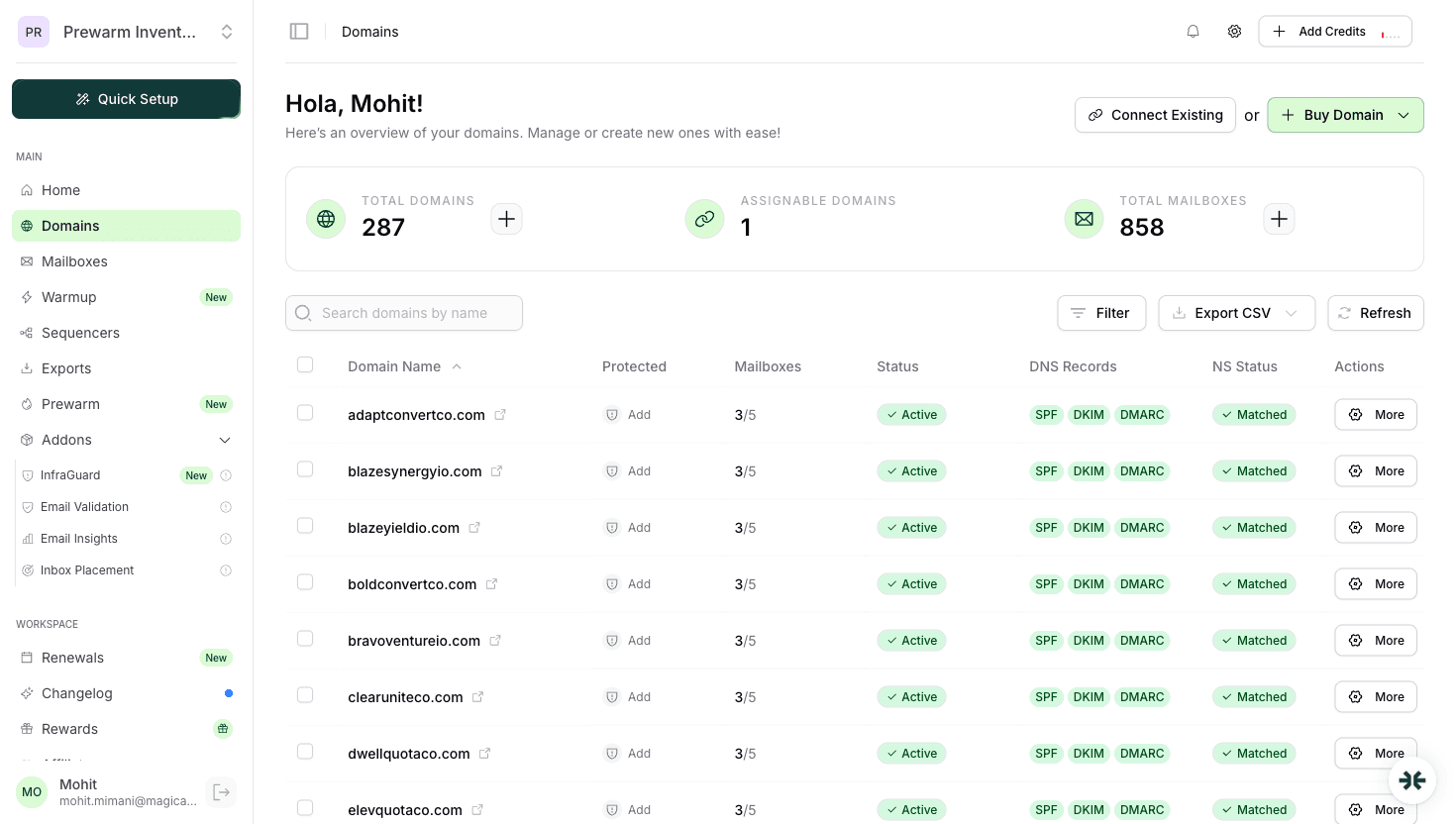
Yes. When you create a mailbox on InboxKit, SPF, DKIM, DMARC, and MX records are configured automatically. The platform also validates records and alerts you if anything breaks. This eliminates the most common setup errors.
Yes. Combine includes in a single record: v=spf1 include:_spf.google.com include:spf.protection.outlook.com ~all. Just ensure total DNS lookups stay under 10.
Start with p=none for 2-4 weeks to monitor, then move to p=quarantine. The quarantine policy is the minimum recommended for email. It provides real deliverability benefits while catching authentication failures.
No. DNS records are per-domain, not per-mailbox. One SPF, one DKIM, and one DMARC record cover all mailboxes on that domain. You only need to update DNS when adding a new sending service, not when adding new mailboxes.
Free tools and pages that go with this guide.
 Guides
 Rahul LakhaneyGuides
 Saksham JainGuidesSaksham JainGuidesSaksham Jain
From $2.50/mailbox/mo. No plans or slots. Automated DNS, warmup, and InfraGuard monitoring included.