
LearnGuides
Connect InboxKit Mailboxes to Smartlead in 3 Minutes

By Mohit MimaniPublished on: Apr 11, 2026 · Updated: Oct 8, 2026 · 8 min read · Last reviewed: Oct 2026
TL;DR
Smartlead accepts InboxKit mailboxes via Gmail OAuth (fastest), app password + SMTP, or SmartSenders CSV. Here are the exact steps, plus the three settings that trip up new senders.
Smartlead accepts InboxKit Google Workspace and Microsoft 365 mailboxes three ways: Gmail/Google OAuth (1-click, most reliable), app password + SMTP/IMAP (when OAuth is blocked by admin policy), and SmartSenders CSV upload (for 20+ mailboxes at once). OAuth finishes in under 60 seconds per mailbox. App password takes around 4 minutes because you must enable 2-Step Verification and generate the 16-character password first. CSV import handles 100 mailboxes in a single upload.
This guide walks through all three paths with the exact Smartlead menu locations, the Google admin prerequisites that cause the most common failures, and the ramp-up numbers that keep new mailboxes out of spam.
Before opening Smartlead, confirm these items. Skipping any of them causes the 'Test Connection' step to fail silently:
| Item | Where | Who owns it |
|---|---|---|
| IMAP enabled for the OU | admin.google.com → Apps → Google Workspace → Gmail → End User Access | Workspace admin |
| 2-Step Verification ON | myaccount.google.com → Security | Mailbox user |
| SPF, DKIM, DMARC live | DNS provider | InboxKit (auto) |
| Smartlead API key | app.smartlead.ai → Settings → API | You |
| Mailbox export CSV from InboxKit | Mailboxes → Export | InboxKit |
IMAP OU setting is the #1 cause of Smartlead connection failures. Smartlead's help docs explicitly call this out: 'Ask your admin to go to admin.google.com, navigate to Apps > Google Workspace > Gmail > End User Access, and ensure IMAP Access is enabled for your organizational unit.' InboxKit mailboxes provisioned under a new Google Workspace tenant usually have this on by default, but legacy tenants migrated years ago often have it off.
InboxKit handles the DNS row automatically. SPF, DKIM, DMARC, and MX records are provisioned in under 60 seconds via Cloudflare at the moment a mailbox is created. Verify with any dig TXT yourdomain.com check or the email domain setup checklist.
Google OAuth is the more secure and reliable method. It does not require storing passwords and reduces the risk of disconnection from security policy changes. This is Smartlead's own recommendation.
| Step | Action | Time |
|---|---|---|
| 1 | Sign in at app.smartlead.ai → Email Accounts | 5 sec |
| 2 | Click Add Email Account → Connect with Google | 5 sec |
| 3 | Pick the InboxKit mailbox from Google's account chooser | 10 sec |
| 4 | Grant Smartlead the four scopes (send, read, modify, profile) | 10 sec |
| 5 | Smartlead pings the mailbox with a test message; wait for green check | 10 sec |
| 6 | Set daily limit: 20 for day 1-14, 30 for day 15-30, 40+ after | 10 sec |
| 7 | Configure warmup: 3 msgs/day start, +1/day, target 25/day | 15 sec |
| 8 | Click Save | 5 sec |
Total: about 70 seconds per mailbox.
Admin whitelist for Google Workspace: If your workspace blocks third-party OAuth apps, a pop-up appears saying 'This app is blocked by your admin.' Fix: admin.google.com → Security → Access and data control → API controls → Manage Third-Party App Access → add Smartlead as Trusted. Source: Smartlead Gmail OAuth guide.
When OAuth is blocked (common in enterprise Google Workspace tenants), use an app password. Smartlead calls this 'Connect Gmail with SMTP' and it is the most compatible path.
Generate the Google app password first:
| Step | Action |
|---|---|
| 1 | myaccount.google.com → Security |
| 2 | Enable 2-Step Verification if not already ON |
| 3 | Click App passwords (search if not visible) |
| 4 | App: Mail. Device: Other (Custom name) → type 'Smartlead' |
| 5 | Copy the 16-character password (format: xxxx xxxx xxxx xxxx) |
Connect in Smartlead:
| Step | Action |
|---|---|
| 1 | Email Accounts → Add Account → SMTP/IMAP |
| 2 | From Email: the InboxKit mailbox address |
| 3 | From Name: sender display name |
| 4 | Username: same as email |
| 5 | SMTP Password: the 16-character app password (with or without spaces, both work) |
| 6 | SMTP Host: smtp.gmail.com, Port: 465, Encryption: SSL |
| 7 | IMAP Host: imap.gmail.com, Port: 993, Encryption: SSL |
| 8 | Click Test Connection |
| 9 | If green, click Save |
Why this fails: 70% of failures come from using the regular account password instead of the app password, 25% from 2-Step Verification not being enabled (you cannot generate an app password without it), and 5% from the workspace having IMAP disabled. Source: Smartlead Connect Gmail With SMTP.
For 20+ InboxKit mailboxes, SmartSenders CSV is the only sane option. Smartlead's DFY Mailboxes feature specifically supports CSV upload for bulk provisioning.
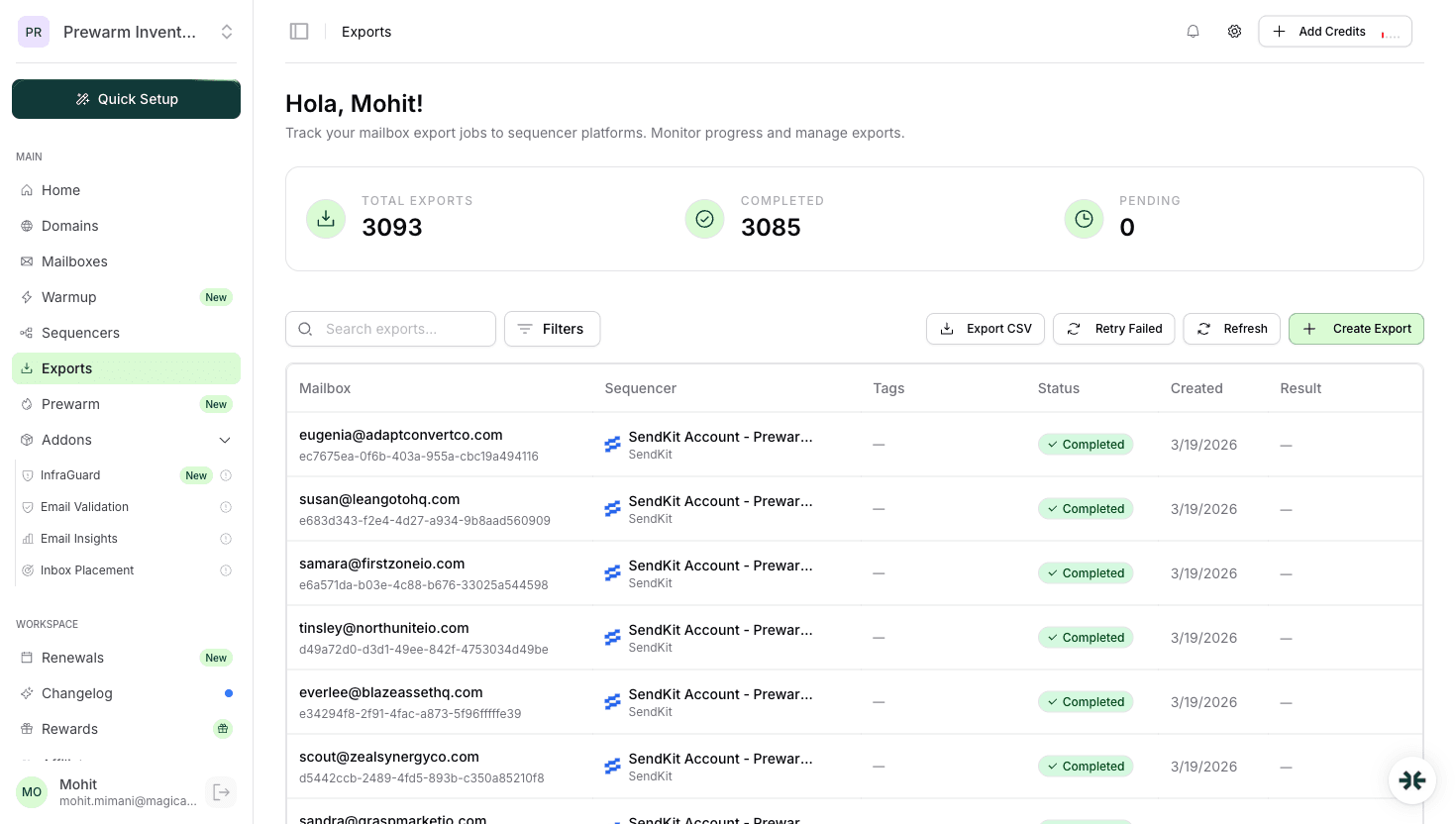
Step 1: Export from InboxKit. InboxKit Mailboxes page → select all → Export CSV. The export includes email, first name, last name, app password, SMTP host/port, IMAP host/port pre-filled for each mailbox. The InboxKit Exports page tracks every export with status and retry capability.
Step 2: Format for Smartlead. Smartlead expects these exact column headers:
| Smartlead column | InboxKit CSV column | Example |
|---|---|---|
| from_email | rep@acmebrand.com | |
| from_name | first_name + last_name | Sarah Chen |
| username | rep@acmebrand.com | |
| password | app_password | abcd efgh ijkl mnop |
| smtp_host | smtp_host | smtp.gmail.com |
| smtp_port | smtp_port | 465 |
| imap_host | imap_host | imap.gmail.com |
| imap_port | imap_port | 993 |
| max_email_per_day | — | 30 |
Step 3: Upload. app.smartlead.ai → Email Accounts → Bulk Upload CSV → drag the file. Smartlead validates each row and shows inline errors. A 50-mailbox upload takes about 3 minutes to fully validate and activate.
Step 4: Turn on warmup in bulk. Filter by 'Not Warmed Up', select all, click Enable Warmup. If you are using InboxKit's isolated warmup add-on at $3/mailbox/month, disable Smartlead's built-in warmup. Running two warmup networks simultaneously doubles sent volume on new mailboxes and sends bad signals to Google.
Keep this table handy for every SMTP error screen:
| Field | Google Workspace | Microsoft 365 | Source |
|---|---|---|---|
| SMTP Host | smtp.gmail.com | smtp.office365.com | Google SMTP, Microsoft SMTP |
| SMTP Port | 465 (SSL) or 587 (TLS) | 587 (TLS) | |
| IMAP Host | imap.gmail.com | outlook.office365.com | |
| IMAP Port | 993 (SSL) | 993 (SSL) | |
| Auth | App password / OAuth | Account password / OAuth | |
| Per-mailbox SMTP AUTH | Always on | Must be enabled by admin |
Microsoft 365 specific: Since 2022, Microsoft disables SMTP AUTH by default on all new tenants. Your admin must enable it per-mailbox: Exchange Admin Center → Recipients → Mailboxes → (select) → Manage email apps → toggle Authenticated SMTP on. If this is off, Smartlead returns: 'Authentication unsuccessful, SmtpClientAuthentication is disabled for the Tenant.' For the deeper comparison between the two providers for email, see Google Workspace vs Microsoft 365.
Smartlead's default daily limit is 50, which is too high for a brand-new mailbox. Use this schedule instead:
| Mailbox age | Daily limit | Warmup messages/day | Notes |
|---|---|---|---|
| Day 1-14 | 0 (warmup only) | 3-10 ramp | No real cold sends |
| Day 15-30 | 15 | 15-20 | First real campaigns |
| Day 31-45 | 25 | 20-25 | Ramp aggressively |
| Day 46-60 | 35 | 25 | Approaching steady state |
| Day 60+ | 40-50 | 25 | Steady state |
Why not higher than 50? Google throttles outbound SMTP relay above ~500 per day for Workspace mailboxes regardless of your plan. Hitting that ceiling triggers 421 temporary errors and deliverability drops. The practical email ceiling is ~40-50 per mailbox. Scale horizontally: 50 mailboxes × 40/day = 2,000 daily sends. See how many domains you need for email and scale email 100 to 10000.
Smartlead's API lets you bulk-update daily limits via PATCH /api/v1/email-accounts/{id} if you prefer scripting the ramp instead of editing in the UI.
From reviewing InboxKit → Smartlead exports, these five account for 85% of failures:
| Error | Root cause | Fix | Frequency |
|---|---|---|---|
| 'Authentication failed' on port 465 | Used account password, not app password | Regenerate with 2SV on, paste the 16-char code | 30% |
| 'IMAP connection timeout' | IMAP disabled at OU level | admin.google.com → Gmail → End User Access → enable IMAP | 22% |
| 'SmtpClientAuthentication is disabled' | Microsoft 365 SMTP AUTH off | Exchange Admin → Manage email apps → Authenticated SMTP | 18% |
| 'Warmup skipped - connection not verified' | Mailbox marked active before first successful send | Trigger test email from Smartlead → Account settings | 10% |
| 'This app is blocked' | Google Workspace OAuth policy blocks Smartlead | admin.google.com → API Controls → whitelist Smartlead | 5% |
Smartlead-specific footgun: The Smartlead dashboard shows 'Connected' even when IMAP is broken. Run the verification flow below, do not trust the checkmark.
Do not launch a campaign until these three tests pass:
Test 1: Test email. Smartlead → Email Accounts → (select mailbox) → Send Test Email to yourself. Expect it in your inbox within 30 seconds.
Test 2: Reply sync check. Reply to the test. Check Smartlead → Master Inbox. If the reply appears in 2 minutes, IMAP is healthy. If not, IMAP is silently broken, so fix before launching.
Test 3: Warmup engagement. After 24 hours, check the mailbox's Warmup tab. Expect to see 10-15 sent warmup messages, 8-12 opened, 5-8 replied. If these numbers are zero, warmup is not running. The mailbox is still in 'setup' mode. See email warmup guide for what healthy warmup looks like in week one.
Only on different mailboxes. Two sequencers targeting the same mailbox will race on SMTP sends and fight over IMAP read flags. Split your InboxKit mailbox pool: 50% to Smartlead, 50% to Instantly if you want to A/B test, but never share a single mailbox between two sequencers.
Pick one. Smartlead's warmup uses a shared pool and is free. InboxKit's warmup ($3/mailbox/month) uses an isolated peer network and generally produces cleaner reputation signals. Running both at once roughly doubles warmup volume and confuses Google's inbox classifiers.
Under 10 minutes via CSV bulk upload plus about 5 minutes for Smartlead to validate. Doing 100 mailboxes one by one through Gmail OAuth takes about 2 hours and burns operator time nobody has.
Zero during warmup (days 1-14), then 15 on day 15, 25 on day 30, 40 by day 60. Smartlead's default 50 is too aggressive for the first month and will push mailboxes into spam folders on the first real campaign.
Smartlead bills by active mailbox, so every InboxKit mailbox you connect counts against your Smartlead seat tier. Compare against your InboxKit mailbox count: [10 InboxKit mailboxes are 10 × $2.50 = $25/month on annual billing ($30 monthly)](/learn/inboxkit-pricing), so you would want a matching Smartlead tier.
Free tools and pages that go with this guide.
 Reviews
 Mohit MimaniGuides
 Saksham JainGuidesSaksham JainGuidesSaksham JainEducational
 Rahul LakhaneyGuidesRahul Lakhaney
From $2.50/mailbox/mo. No plans or slots. Automated DNS, warmup, and InfraGuard monitoring included.