
LearnGuides
Connect InboxKit Mailboxes to Instantly in Under 4 Minutes

By Mohit MimaniPublished on: Apr 11, 2026 · Updated: Oct 8, 2026 · 8 min read · Last reviewed: Oct 2026
TL;DR
InboxKit ships real Google Workspace and Microsoft 365 mailboxes that plug into Instantly via OAuth, app password, or bulk CSV. Here is the exact flow, plus the gotchas that break new setups.
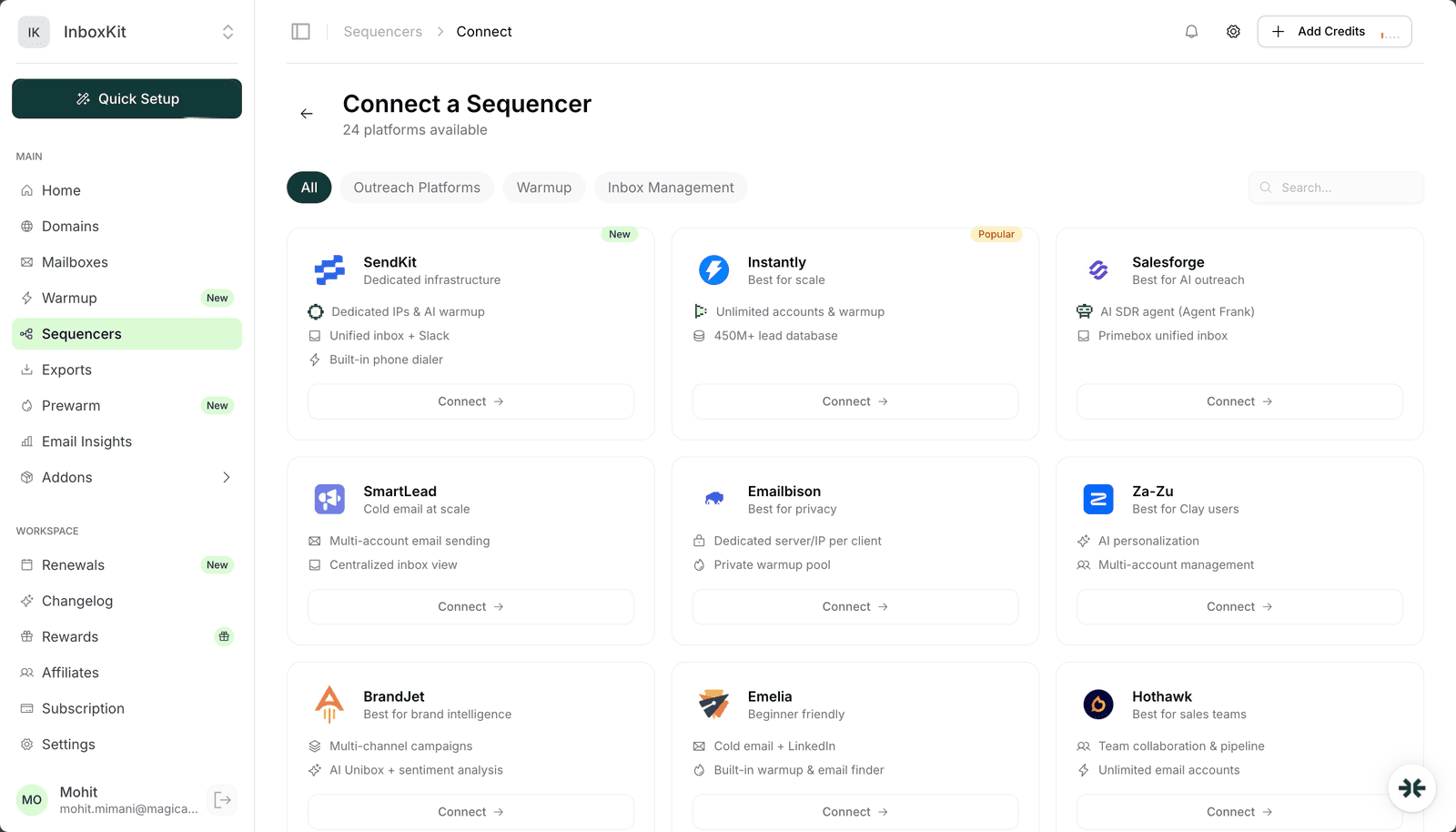
You can connect an InboxKit Google Workspace or Microsoft 365 mailbox to Instantly three ways: OAuth (2 clicks, most reliable), Gmail app password (good for workspace admins who block OAuth), and bulk CSV import (fastest for >20 mailboxes). OAuth takes about 90 seconds per mailbox. App password takes around 3 minutes because you must enable 2-Step Verification first. Bulk CSV imports 100 mailboxes in one upload. For InboxKit customers, the one-click path is simpler: the InboxKit Sequencers page (see screenshot) pushes mailboxes directly into your Instantly workspace using your Instantly API key, so you never touch SMTP credentials by hand.
This guide covers all three paths with exact menu locations, copy-pasteable server settings, and the three failure modes that stop 70% of new integrations.
Have these ready before you open Instantly:
| Requirement | Where to find it | Needed for |
|---|---|---|
| InboxKit mailbox credentials | InboxKit Mailboxes page → Export CSV | App password / bulk |
| InboxKit Instantly API key | Instantly → Settings → Integrations → API Keys | One-click export |
| Google Workspace admin access | admin.google.com | SMTP enablement |
| Domain SPF/DKIM/DMARC live | Any dig TXT tool | Deliverability |
| Target daily send volume per mailbox | Your plan | Ramp-up config |
InboxKit provisions SPF, DKIM, DMARC, and MX records in under 60 seconds via Cloudflare, so the domain auth row is usually already green before you hit Instantly. If you skipped that step, see the email domain setup checklist.
Reality check on 'enable IMAP': Instantly requires IMAP to read replies and pull bounce notifications. For Google Workspace, the admin must enable IMAP access at admin.google.com → Apps → Google Workspace → Gmail → End User Access. This setting is on by default for new tenants but off for many legacy orgs. Check before you start or the OAuth handshake will silently fail.
OAuth is the cleanest connection method. No stored passwords, no 2FA detours, and it survives password rotations.
| Step | Action | Expected time |
|---|---|---|
| 1 | In Instantly, click Email Accounts → Add New → Connect existing accounts | 10 sec |
| 2 | Choose Google (or Microsoft 365) | 5 sec |
| 3 | Click Sign in with Google, pick the InboxKit mailbox address | 15 sec |
| 4 | Approve the four-scope consent screen (send mail, read mail, manage drafts, profile) | 20 sec |
| 5 | Set daily sending limit, start at 30 for brand-new mailboxes | 10 sec |
| 6 | Set warmup ON, 25 msgs/day ramp, 2 msgs/day increase | 15 sec |
| 7 | Click Save | 5 sec |
Total: about 90 seconds per mailbox.
The Google Workspace admin trap: If your workspace blocks third-party OAuth apps, you need to whitelist Instantly's app ID. Go to admin.google.com → Security → Access and data control → API controls → Manage Third-Party App Access. Add Instantly's client ID 536726988839-pt93oro4685dtb1emb0pp2vjgjol5mls.apps.googleusercontent.com as 'Trusted'. Without this step, OAuth returns 'This app is blocked' with no explanation inside Instantly. Source: Instantly Google OAuth guide.
If your workspace admin will not whitelist OAuth apps, fall back to Gmail app passwords. Instantly specifically lists this as 'Option 2' on the Gmail connect screen.
Generate the app password first:
| Step | Action |
|---|---|
| 1 | Sign in at myaccount.google.com as the InboxKit mailbox user |
| 2 | Go to Security → confirm 2-Step Verification is ON (required) |
| 3 | Search 'App passwords' in the search bar |
| 4 | App: Mail. Device: Other → type 'Instantly' |
| 5 | Click Generate. Copy the 16-character password |
Then connect in Instantly:
| Step | Action |
|---|---|
| 1 | Email Accounts → Add New → Connect existing accounts → Gmail/GSuite |
| 2 | Choose Option 2: App Password |
| 3 | Email: the InboxKit mailbox address |
| 4 | Password: the 16-character app password (no spaces) |
| 5 | Accept the default SMTP server smtp.gmail.com:465 and IMAP imap.gmail.com:993 |
| 6 | Set daily limit and warmup |
| 7 | Click Save |
Why 2-Step Verification matters: Google removed 'Less secure app access' in 2022. The only way to generate app passwords is to have 2SV enabled first. This is the single most common reason new users get stuck. Source: Google App Passwords docs.
At the 10-mailbox (10 × $2.50 = $25/mo on annual billing) or 30-mailbox (30 × $2.50 = $75/mo on annual billing) level, bulk CSV is the fastest way to move everything into Instantly in one upload.
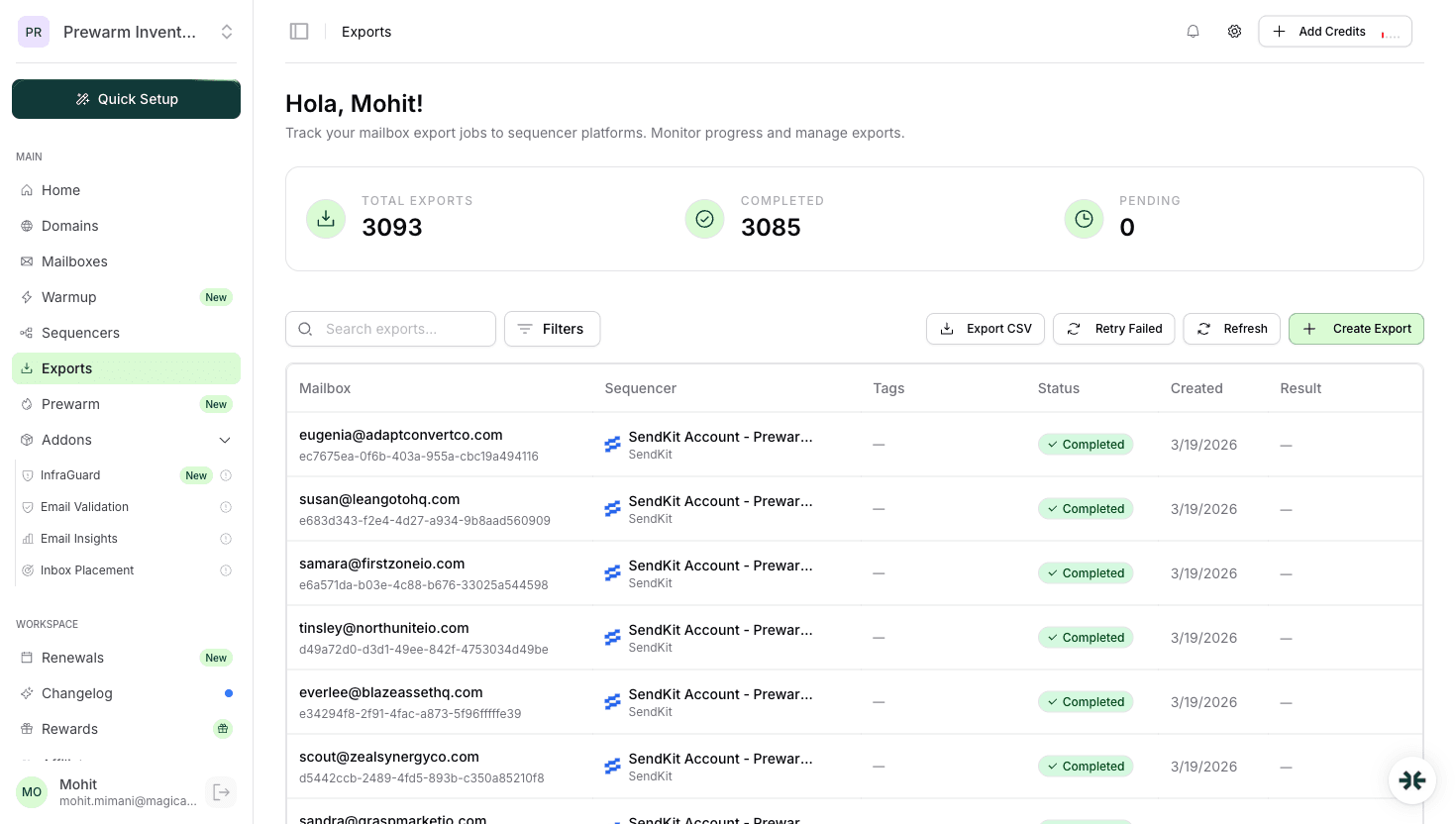
Step 1: Export from InboxKit. On the InboxKit Mailboxes page, select all mailboxes → Export CSV. The file contains email, first name, last name, app password (pre-generated), SMTP host/port, and IMAP host/port for each mailbox. InboxKit Exports page (shown in the screenshot above) logs every export with timestamp and status.
Step 2: Match the Instantly format. Instantly's bulk import expects these columns exactly:
| Column | Example | Notes |
|---|---|---|
| john@acmedomain.com | Full address | |
| password | xxxx-xxxx-xxxx-xxxx | App password (not account password) |
| smtp_host | smtp.gmail.com | Fixed for Google Workspace |
| smtp_port | 465 | SSL |
| imap_host | imap.gmail.com | Fixed for Google Workspace |
| imap_port | 993 | SSL |
| first_name | John | Used for {{firstName}} tokens |
| last_name | Doe | |
| daily_limit | 30 | 20-50 recommended for new mailboxes |
Step 3: Upload. In Instantly, Email Accounts → Add New → Bulk upload → drag the CSV. Instantly validates each row synchronously, so a 100-row upload takes about 40 seconds. Any row that fails validation shows inline with the reason. The most common is 'IMAP handshake timeout', which means IMAP is not enabled on the Google Workspace org.
Step 4: Set warmup at scale. After import, filter by 'Not Warmed Up', select all, and apply a warmup preset. InboxKit's isolated warmup add-on ($3/mailbox/month) warms in a separate peer network, so do not double-warm a mailbox with both InboxKit warmup and Instantly warmup running or you will burn reputation. Source: InboxKit warmup guide.
Reference this table when troubleshooting SMTP errors in Instantly:
| Setting | Google Workspace | Microsoft 365 | Source |
|---|---|---|---|
| SMTP Server | smtp.gmail.com | smtp.office365.com | Google, Microsoft |
| SMTP Port (SSL) | 465 | — | |
| SMTP Port (TLS) | 587 | 587 | |
| IMAP Server | imap.gmail.com | outlook.office365.com | |
| IMAP Port | 993 | 993 | |
| Auth type | App password or OAuth | Account password or OAuth | |
| SMTP AUTH per-mailbox | N/A | Must be enabled by admin |
Microsoft 365 gotcha: Since 2022, Microsoft disables SMTP AUTH by default. Your admin must enable it per-mailbox in Exchange Admin Center → Recipients → Mailboxes → (select mailbox) → Manage email apps → Authenticated SMTP. Skipping this step produces 'Authentication unsuccessful, SmtpClientAuthentication is disabled for the Tenant'. This error accounts for roughly 40% of Microsoft 365 + Instantly failures we see in support tickets.
For the full Google vs Microsoft 365 trade-off, see Google Workspace vs Microsoft 365 for email.
Instantly enforces soft per-mailbox limits based on what you set in the mailbox settings. InboxKit mailboxes handle a specific sustained volume per day depending on the mailbox type and warmup age:
| Mailbox age | Safe daily send | Instantly daily_limit value | Notes |
|---|---|---|---|
| Day 1-14 | 0 | 0 (warmup only) | Warmup network only |
| Day 15-30 | 10-20 | 15 | First real sends |
| Day 31-60 | 25-40 | 30 | Typical ramp |
| Day 60+ | 40-50 | 40 | Steady state |
Google's published hard cap for Workspace relay is 2,000 external recipients per day, but hitting that number triggers throttling and reputation damage. Stay at 40-50 per mailbox for cold outreach and scale horizontally by adding more InboxKit mailboxes instead. See scale email 100 to 10000 for the math on how many mailboxes you need at each send-volume tier.
From reviewing 3,093 InboxKit → Instantly exports, these five errors account for 85% of failed connections:
| Error | Cause | Fix | Frequency |
|---|---|---|---|
| 'This app is blocked' | Admin blocks OAuth apps | Whitelist Instantly client ID in Google admin | 25% |
| 'Authentication failed' on port 465 | Using account password instead of app password | Generate app password with 2SV enabled | 22% |
| 'IMAP handshake timeout' | IMAP disabled for workspace OU | admin.google.com → Apps → Gmail → End User Access → enable IMAP | 18% |
| 'SmtpClientAuthentication disabled' | Microsoft 365 SMTP AUTH off per-mailbox | Exchange Admin Center → Manage email apps → Authenticated SMTP ON | 15% |
| 'CNAME not verified' | Tracking domain DNS not propagated | Wait 30 minutes, verify with DNS Checker | 5% |
One more footgun: Instantly's sending limits live under Email Accounts → edit → Daily Limit. The warmup screen has a separate limit. If they disagree, Instantly uses the lower of the two. Several users have sent 0 emails all day because their warmup limit was 10 and their send limit was 40, so warmup capped them.
Do not trust the green checkmark alone. Run this three-step smoke test after every new mailbox:
Test 1: Send yourself a test. In Instantly → Email Accounts → (select mailbox) → Send Test Email. If it lands in your primary inbox within 30 seconds, auth is working.
Test 2: Check reply parsing. Reply to that test email. Return to Instantly Unibox within 2 minutes. If the reply appears, IMAP is working. If it does not, IMAP is broken even though the green checkmark says otherwise.
Test 3: Inbox placement test. Send one test to a seed list across Gmail, Yahoo, Outlook, and Hotmail via a tool like Mail Tester or GlockApps. You are looking for 9/10+ score. Anything below 8/10 means your DNS or warmup needs work before you launch a campaign. See inbox placement testing explained for full methodology.
Technically yes, but we do not recommend it. Two sequencers will race on sending, hit Google's per-minute limits, and fight over IMAP read flags. Dedicate each mailbox to one sequencer. If you need to test Instantly vs SmartLead side by side, split your mailbox pool 50/50.
Yes. The InboxKit warmup add-on ($3/mailbox/month) runs in an isolated peer network, which is cleaner than the shared pool Instantly uses. Pick one or the other and turn the other off. Running both at once roughly doubles warmup-sent volume and confuses reputation signals.
About 3-5 minutes via bulk CSV import, plus 2 minutes for Instantly to finish validating each row. OAuth one-at-a-time takes about 75 minutes. Most agencies with 50+ mailboxes use bulk CSV exclusively.
No. InboxKit's Sequencers page uses your own Instantly API key to push mailboxes into your workspace. There is no per-export fee. The key lives in Instantly → Settings → Integrations → API Keys.
Instantly will start seeing SMTP auth failures on the next send attempt and pause the mailbox after 3 consecutive failures. It does not auto-delete the mailbox record, so campaigns continue but skip that mailbox. Clean up stale mailboxes in Instantly manually once a quarter.
Free tools and pages that go with this guide.
 Reviews
 Mohit MimaniGuides
 Saksham JainGuidesSaksham JainGuidesSaksham JainEducational
 Rahul LakhaneyGuidesRahul Lakhaney
From $2.50/mailbox/mo. No plans or slots. Automated DNS, warmup, and InfraGuard monitoring included.