LearnGuides
Microsoft 365 Cold Email Spam Fix Guide (2026)

By Saksham JainPublished on: Apr 11, 2026 · 11 min read · Last reviewed: Apr 2026
TL;DR
Microsoft 365 runs its own filter stack. Exchange Online Protection, with different rules than Gmail. Here's how to read the headers, decode the scores, and fix cold emails landing in Junk or Quarantine.
Microsoft 365 runs every inbound message through Exchange Online Protection (EOP): Microsoft's anti-spam and anti-malware filter. EOP uses a different scoring model than Gmail's classifier:
The consistent mistake cold emailers make: applying Gmail deliverability advice to Microsoft 365 and expecting the same result. Microsoft is stricter on authentication alignment (SPF matters more than with Gmail), more tolerant of volume (fewer rate-limit bounces), and more opaque about filter decisions (no public Postmaster-style dashboard). Different fix strategy.
This guide covers the Microsoft-specific diagnostic path: reading EOP headers, decoding SCL/BCL, and the fixes that move cold email out of Junk and into the Focused Inbox.
Send a test to a real Microsoft 365 mailbox. In Outlook (desktop or web), open the message > File > Properties (desktop) or the three dots > View message source (web). The critical headers:
X-Forefront-Antispam-Report: CIP:203.0.113.5;CTRY:US;LANG:en;SCL:5;SRV:;IPV:NLI;SFV:SPM;H:mail.yourdomain.com;PTR:mail.yourdomain.com;CAT:BULK;SFS:(4636009)(6029001)(7916004);DIR:INB;SFTY:;
X-Microsoft-Antispam: BCL:7;
Authentication-Results: spf=pass smtp.mailfrom=yourdomain.com; dkim=pass header.d=yourdomain.com; dmarc=pass action=none header.from=yourdomain.com;
The important fields and how to read them:
| Field | Meaning | Good Values | Bad Values |
|---|---|---|---|
| SCL | Spam Confidence Level (0-9) | 0, 1 (inbox) | 5-6 (Junk), 7-9 (Quarantine) |
| BCL | Bulk Complaint Level (0-9) | 0-3 | 4-9 (bulk sender, filtered) |
| SFV | Spam Filter Verdict | SKN (safe), NSPM (not spam) | SPM (spam), SKA (sender allowed, someone else's list), BLK (blocked) |
| CAT | Category | None | BULK, SPM, PHSH, HSPM (high-confidence spam) |
| CIP | Connecting IP | Your actual sending IP | Shared-pool IP |
| PTR | Reverse DNS | Resolves to your domain | Missing or mismatched |
| Authentication-Results | SPF/DKIM/DMARC | All three pass | Any fail |
The diagnostic formula: if SCL is 5-6 but authentication is all pass, the problem is content or BCL. If authentication has any fail, fix that first. If BCL is 4+, your domain is being classified as a bulk sender and needs the fixes in Step 3.
Microsoft 365 enforces SPF/DKIM/DMARC alignment more aggressively than Gmail for cold senders. Alignment fails here route mail directly to Junk or Quarantine, not just a reputation downgrade.
Microsoft-specific authentication rules:
| Requirement | Microsoft Behavior | Fix |
|---|---|---|
| SPF must pass and align | spf=pass smtp.mailfrom=yourdomain.com. Envelope sender must resolve to your domain. | For real Google Workspace → M365 recipients, this is automatic. For relay ESPs (Sendgrid), set up a custom bounce domain. |
| DKIM must pass and align | dkim=pass header.d=yourdomain.com. Signing domain must match From:. | Set up custom DKIM on your sequencer/ESP; verify with dmarc-failed-gmail-fix step 1. |
| DMARC must pass or be null | dmarc=pass or no DMARC record | Minimum p=none record; move to p=quarantine after 14 days |
| PTR (reverse DNS) must resolve back | PTR:mail.yourdomain.com | Real Google Workspace / M365 handle this automatically. Self-hosted needs explicit reverse DNS setup. |
| No IP in Spamhaus SBL or Barracuda | EOP consults both | See domain-blacklisted-diagnosis-guide |
The single most common cause of M365 spam routing for cold email: SPF alignment failure when using a sequencer that relays through a transactional ESP. Microsoft reads the envelope sender (mailfrom=) and if it's bounces@sendgrid.net while the visible From: is you@yourdomain.com, SPF is technically pass but alignment is fail. Microsoft routes to Junk.
The fix: either send directly from a real Microsoft 365 mailbox (no relay) or configure your ESP to use a custom bounce subdomain on your own domain. Reference record syntax in spf-record-setup-cold-email.
BCL is Microsoft's "how much does this look like a bulk newsletter" score. It ranges 0-9. Anything 4+ routes the message into Junk even with clean authentication.
What raises BCL:
| Signal | BCL Impact | Fix |
|---|---|---|
| List-Unsubscribe header | High | Remove for low-volume cold (< 5000/day); required at higher volumes |
| Tracking pixel (1x1 image) | High | Disable open tracking in your sequencer |
| Multiple CTAs or links in body | Medium | 1 link maximum in cold email first-touch |
| Inline images or banner | High | Plain text or minimal HTML only |
| Long body (>200 words) | Medium | Keep under 120 words |
| Identical body across recipients | High | Personalize with first name + company minimum |
| Subject with emoji or ALL CAPS | Medium | Sentence case, no emoji |
| Marketing-style signature (logo, address block) | Medium | Text-only signature, minimal |
Check BCL in the headers. A message with BCL:0 and clean authentication lands in the Focused Inbox. A message with BCL:4 lands in Junk. Most cold emailers never check this. They just assume Outlook is "being weird" when actually BCL is the direct signal they need to address.
The three-sentence cold email format reliably produces BCL:0 because it mechanically has no bulk markers: no pixel, no tables, no images, 1 link, under 80 words, personalized. Template reference in cold-email-ab-testing-guide.
Microsoft 365's rate limits are different from Gmail's. Microsoft is more tolerant of per-mailbox volume but stricter on per-minute bursts and per-IP accumulation.
Microsoft 365 rate limits (observed in 2026):
| Scope | Limit | Exceeding It |
|---|---|---|
| Per-mailbox per day (cold sends) | ~40-50 safe | 4.7.500 "Server busy" or BCL spike |
| Per-minute per mailbox | ~5-10 sends | Throttling for 5-15 min |
| Per-IP per hour to one tenant | ~100 sends | 4.4.5 rate limit |
| Per-IP per day (shared outbound pool) | ~2000 | Tempfail 421 4.7.500 for the day |
Configuring your sequencer for Microsoft 365:
Important: Microsoft's rate limits apply per-tenant, so a single Azure tenant with 100 mailboxes × 40/day = 4000 sends/day without hitting tenant-level throttling. This is the per-tenant capacity advantage of Azure over single-mailbox M365.
Microsoft doesn't publish a Postmaster Tools equivalent. Instead, the diagnostic signals live in three places:
| Source | What It Shows | Availability |
|---|---|---|
| SNDS (Smart Network Data Services) | IP-level data for dedicated IPs: volume, complaint rate, trap hits | https://sendersupport.olc.protection.outlook.com/snds/, request access |
| JMRP (Junk Mail Reporting Program) | Feedback loop. Microsoft emails you when a recipient marks your mail as spam | Request enrollment per sending IP |
| DMARC aggregate reports | Per-receiver authentication results; Microsoft 365 sends these if you set rua= | Automatic if DMARC record has rua= |
SNDS is the closest thing to Microsoft Postmaster Tools. Once your IP is enrolled, you get daily data on:
For cold email on real Microsoft 365 mailboxes, SNDS is usually blank because the sending IP belongs to Microsoft. You don't control it. SNDS is most useful for self-hosted or dedicated-IP setups. If you're running cold email through real M365, rely on:
Full monitoring setup in email-deliverability-monitoring-setup.
Outlook's Focused Inbox is Microsoft's equivalent of Gmail's Primary tab. Messages routed to "Other" are technically in the inbox, not spam, but recipients rarely check "Other." Reply rate on cold emails in Other is 30-50% lower than in Focused.
Focused vs Other is not controlled by SCL/BCL. It's a separate machine-learned classifier that runs after EOP and looks at per-recipient engagement signals:
| Signal | Boosts Focused Routing | Boosts Other Routing |
|---|---|---|
| Prior reply from recipient | Strong boost to Focused | — |
| Recipient added sender to contacts | Strong boost to Focused | — |
| 1:1 email shape (no CC, no list headers) | Medium boost | — |
| Bulk-sender headers (List-Unsubscribe) | — | Medium boost to Other |
| Newsletter-style HTML | — | Medium boost to Other |
| Generic salutation ("Dear customer") | — | Light boost to Other |
| Personalized subject | Light boost to Focused | — |
Fixes that move cold email from Other to Focused:
This is similar but not identical to Gmail Promotions routing, see emails-landing-in-promotions-tab for the Gmail equivalent.
InboxKit runs real Microsoft 365 mailboxes (not forwarded SMTP relays), which eliminates most M365-specific spam causes:
| M365 Spam Cause | InboxKit Control |
|---|---|
| SPF envelope sender mismatch | Real M365 mailboxes send directly, envelope sender is always your domain. Automatic alignment. |
| DKIM signing domain mismatch | Microsoft's default DKIM signs with your domain when you set up custom DKIM CNAMEs. InboxKit automates this in <60s. |
| Shared IP contamination | Sends go through Microsoft-owned outbound infrastructure. Your neighbor's bad activity doesn't affect you. |
| PTR record missing | Microsoft handles reverse DNS for your tenant automatically. |
| Unaligned DMARC | Cloudflare-automated DMARC record setup in <60s per domain. |
| Volume ramp too fast | Built-in daily volume caps per mailbox; ramps automatically over warmup period. |
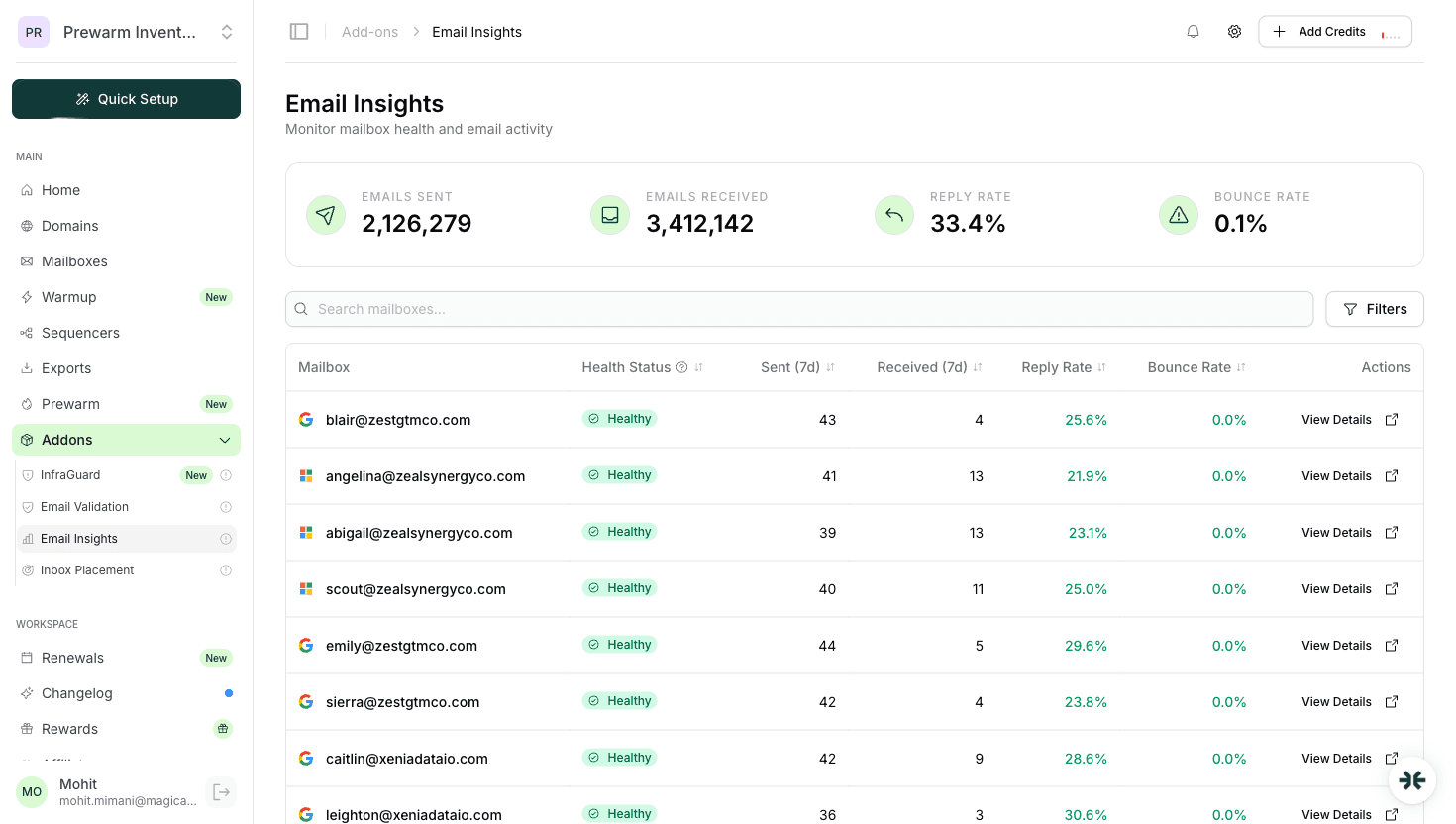
| Drift over time | InfraGuard checks SPF/DKIM/DMARC every 6h; alerts on drift. |
Full pricing breakdown in inboxkit-pricing. See google-workspace-vs-microsoft-365-cold-email for the provider comparison if you're deciding between Google and Microsoft for cold email.
SCL (Spam Confidence Level, 0-9) is the general spam score, higher means more likely spam. BCL (Bulk Complaint Level, 0-9) specifically measures whether the message looks like a bulk newsletter. Cold emails typically want SCL:0-1 and BCL:0-3. Either score crossing its threshold routes to Junk.
Partially. SNDS (Smart Network Data Services) gives IP-level data but requires you to control the sending IP, which most cold emailers on real M365 mailboxes don't. For cold email, seed testing + DMARC aggregate reports are the practical diagnostic tools.
Microsoft is stricter on SPF alignment than Gmail, and Microsoft's BCL scoring punishes bulk-sender markers more aggressively. A message that passes Gmail's classifier can still hit BCL:4+ on Microsoft and route to Junk. Fix: remove List-Unsubscribe for low-volume sends, disable open tracking, and shorten the body.
Not if you send directly from a real Microsoft 365 mailbox, the envelope sender is already your domain. Custom bounce domains are only needed when you're relaying through a transactional ESP (Sendgrid, Mailgun) that wants to capture bounces on their own domain.
Yes. Azure tenants let you provision up to 100 M365 mailboxes under one tenant subscription. InboxKit offers Azure tenants at $30/tenant for up to 100 mailboxes, typically the lowest per-mailbox cost for high-volume Microsoft cold email setups.
 Saksham JainSaksham JainSaksham JainSaksham JainSaksham Jain
Plans from $39/mo with 10 mailboxes included. Automated DNS, warmup, and InfraGuard monitoring included.