
LearnGuides
Connect InboxKit Mailboxes to Email Bison in 3 Minutes

By Mohit MimaniPublished on: Apr 11, 2026 · 8 min read · Last reviewed: Apr 2026
TL;DR
Email Bison runs a dedicated server per client with its own private warmup pool. InboxKit mailboxes plug in via a standard credentials flow: here is the exact setup, plus how the two isolation layers stack.
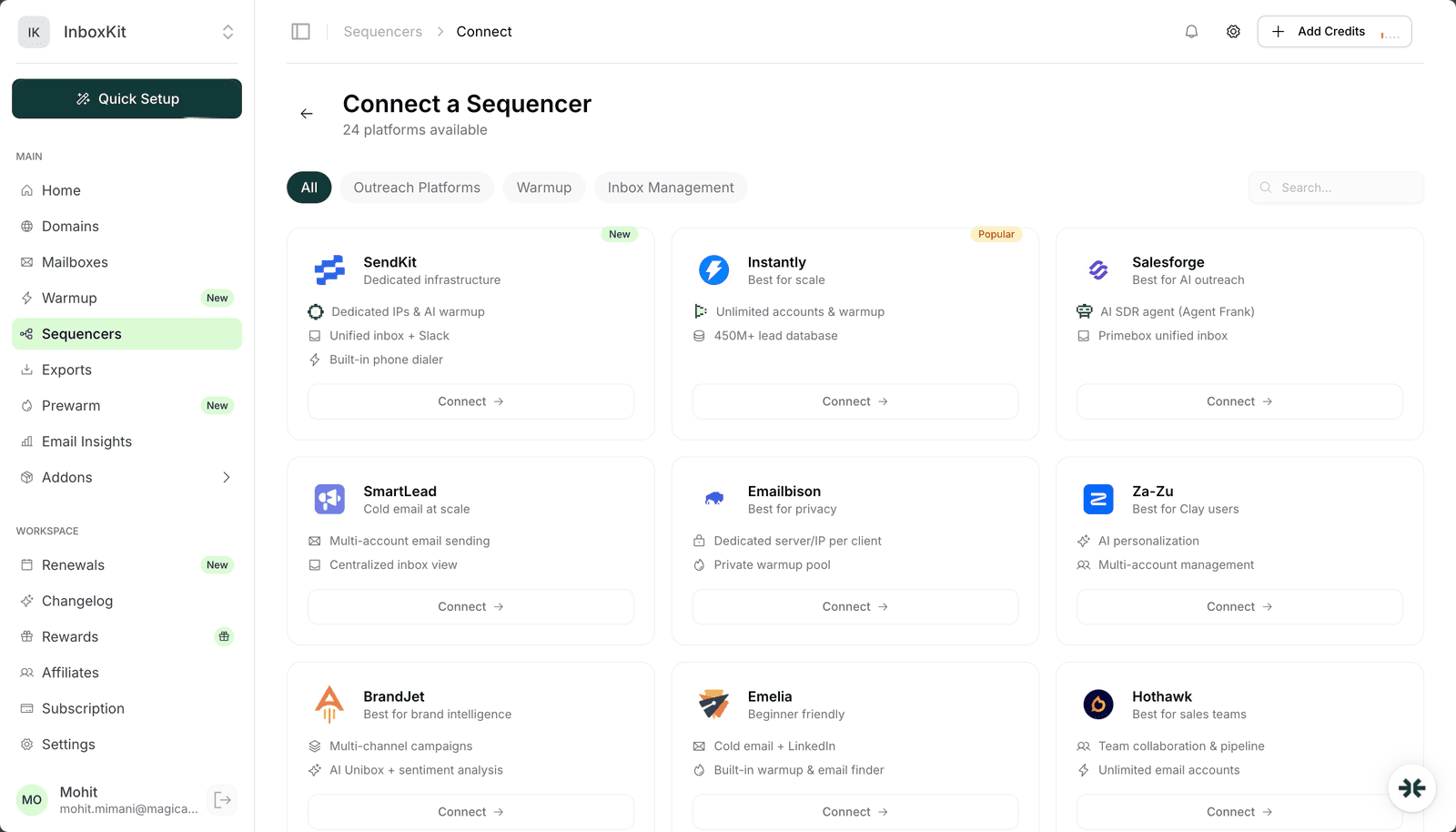
Email Bison connects via email + password inside InboxKit's Sequencers Connect screen. Unlike shared-server tools like Instantly or Smartlead, every Email Bison client runs on a dedicated server with a dedicated IP, and your InboxKit mailboxes inherit that isolation the moment they are imported. The connect itself is standard. InboxKit validates the credentials against your Email Bison instance URL, then pushes each selected mailbox via SMTP and IMAP. Expect about 90 seconds start to finish.
This is the integration to pick if you are running sensitive B2B outreach, compliance-scoped verticals (legal, finance, healthcare), or any workflow where you need to be able to prove that your sending IP is not shared with another tenant.
Before you open the InboxKit Sequencers Connect screen, make sure these are in place:
| Item | Where | Required |
|---|---|---|
| Email Bison subscription with a provisioned dedicated server | emailbison.com | Yes |
| Bison account login (email + password) | Your onboarding email from Bison | Yes |
| Bison instance URL (e.g. app.yourcompany.bison.io) | Your dedicated subdomain, assigned at signup | Yes: needed during validation |
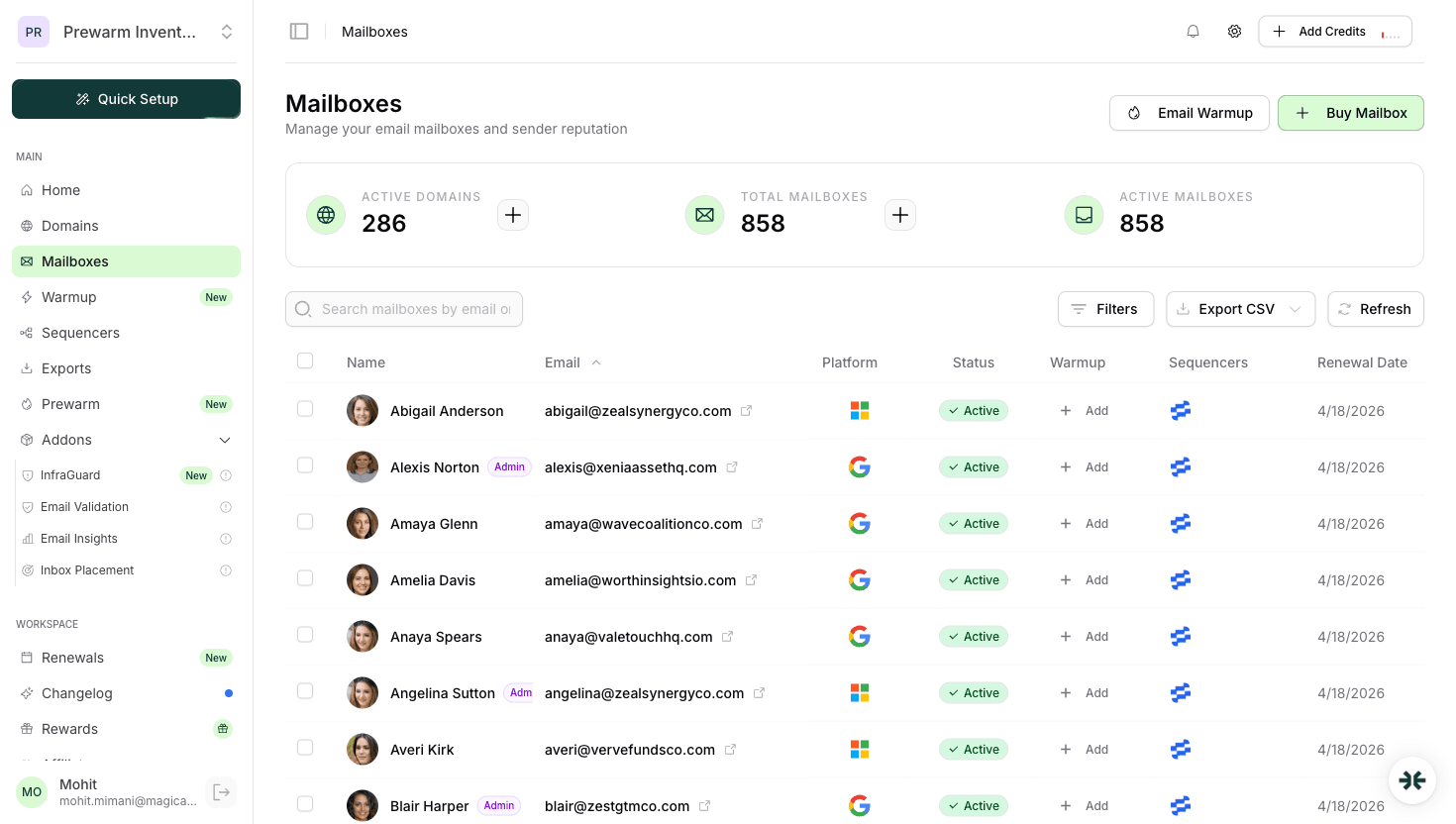
| At least one InboxKit mailbox | InboxKit → Mailboxes | Yes |
| Domain DNS (SPF, DKIM, DMARC, MX) live | InboxKit auto-configures via Cloudflare in under 60 seconds | Yes |
| Private warmup pool enabled inside Bison | Bison Settings → Warmup | Recommended |
Critical note on the Bison instance URL. Because each client runs on a dedicated subdomain, the InboxKit connect flow asks for it up front. If your Bison onboarding email says https://acmeinc.bison.io, paste exactly that: without trailing slash: into the App URL field. Getting this wrong is the single most common connection failure. Your Bison support contact can tell you the exact URL if you are not sure.
Here is the full click path:
| Step | Action | Time |
|---|---|---|
| 1 | InboxKit → Sequencers → Connect New Sequencer | 5 sec |
| 2 | Pick Email Bison from the Outreach category | 5 sec |
| 3 | Enter Email: your Bison account login | 5 sec |
| 4 | Enter Password: your Bison account password | 5 sec |
| 5 | Click Connect Account | , |
| 6 | InboxKit validates the credentials against your dedicated Bison instance | 1-3 sec |
| 7 | Mailboxes are pushed to Bison via SMTP | 20-40 sec |
| 8 | Redirect to /sequencers with success toast | , |
Total: about 90 seconds.
Unlike SendKit or BrandJet (which use API keys with special validation UIs), Email Bison uses the standard credential form. Validation is synchronous on submit: a wrong credential pair returns an instant error.
One UX detail that trips new users: Bison's login email and the sending mailbox address are usually different. The Email field on the connect screen should be your Bison account email (the one you log into app.yourcompany.bison.io with), not the InboxKit mailbox address you want to send from. The mailbox addresses come from InboxKit, you never type them into Bison manually.
Email Bison ships a private warmup pool as part of the dedicated-infrastructure package. InboxKit's warmup add-on ($3/mailbox/month) is a separate isolated peer network. You have to pick one per mailbox: running both at once just burns reputation and confuses signals.
| Warmup option | Cost | Network | When to pick |
|---|---|---|---|
| Email Bison private warmup | Included in Bison plan | Bison's per-client pool | If every mailbox lives inside Bison long-term |
| InboxKit isolated warmup | $3/mailbox/month | Separate peer network | Multi-sequencer setup, or if you move mailboxes between tools |
For most Bison customers, Bison's built-in warmup is the right call because it runs on the same dedicated infrastructure as the actual sends, which means the warmup traffic directly trains the IP and domain reputation you are about to use for outreach. The InboxKit warmup add-on is better if you are running mailboxes across multiple sequencers (e.g. some in Bison, some in Smartlead) and want one consistent warmup profile across all of them.
Do not double-warm. The email warmup tools comparison and email warmup guide both break down why running two warmup engines on one mailbox generates inconsistent reputation signals at Gmail Postmaster.
Even on a dedicated IP, Gmail and Microsoft still enforce per-mailbox send limits. Your mailbox is still a single Google Workspace account, and Google caps it at ~2,000 external recipients per day. Email best practice is to stay well below that.
| Mailbox age | Safe daily send | Bison daily_limit | Notes |
|---|---|---|---|
| Day 1-14 | 0 | 0 | Warmup only |
| Day 15-30 | 15-20 | 15 | Early sends |
| Day 31-60 | 25-40 | 30 | Full ramp |
| Day 60+ | 40-50 | 40 | Steady state |
The advantage of a dedicated Bison IP is that you can run closer to the upper edge of this range without worrying about a neighbor dragging your reputation down. Some agencies with fully-warmed Bison mailboxes run 50-60/day per mailbox in mature mode. That is still far under Google's hard cap, but gets meaningful scale when you have 50+ mailboxes going. See the scale email 100 to 10000 playbook for how the mailbox-count math works at each tier.
Five most common failure modes for InboxKit → Email Bison connections:
| Error | Cause | Fix |
|---|---|---|
| 'Instance URL not reachable' | Wrong subdomain, typo, or DNS propagation incomplete | Verify with curl -I https://yourcompany.bison.io: should return 200 |
| 'Authentication failed' | Wrong credentials, or account not yet provisioned on the dedicated server | Check login at app.yourcompany.bison.io in a browser first |
| 'Connection timeout' | Bison instance still warming up post-provisioning | Wait 5-10 minutes after Bison confirms your instance is live |
| Some mailboxes export but not others | InboxKit hits Bison's rate limit mid-batch | Export in groups of 10 with 60s between |
| SMTP auth error inside Bison after successful import | Target mailbox has 2-step verification on without app password | Generate Google app password or use OAuth path |
On the dedicated-server timing issue: Email Bison onboarding can take a few hours to provision your dedicated instance even after payment. If you try to connect InboxKit before the Bison instance is fully up, you will get a 'Connection timeout' error with no useful detail. Confirm the instance is live by logging in via the web first, then retry the InboxKit connect.
Four checks before your first real campaign:
Check 1: SMTP test send. In Bison, open the imported mailbox, send a test email to your own address. Confirm it lands in <30 seconds with DKIM passing in the headers.
Check 2: IMAP reply fetch. Reply to the test. Return to Bison's unified inbox within 2 minutes. If the reply appears, IMAP is working. Bison pulls replies via IMAP just like Salesforge Primebox and Instantly's Unibox, so the same Google Workspace IMAP-at-OU-level prerequisite applies.
Check 3: sending IP verification. This is Bison's whole value proposition: confirm you are actually sending from a dedicated IP. Send a test to a seed address, open the raw headers, find the Received: line. Run the IP through MXToolbox. You should see your Bison instance IP, not a shared pool IP. If you see a shared pool, contact Bison support.
Check 4: inbox placement test. Run a seed test across Gmail, Outlook, Yahoo, Hotmail. Look for 9/10+ on a dedicated-IP Bison setup, you paid for a clean IP, so the score should be excellent from day one. If it is not, see inbox placement testing explained to diagnose.
No, they stack. The InboxKit mailbox IP is the IP that the mailbox's OAuth session originates from. The Bison IP is the sending IP that the actual SMTP relay uses. Both matter. US-based mailbox IPs help with Google's geo-reputation on the inbound side, and the Bison dedicated IP is what external mail servers see on the outbound side. For most email setups, having both is ideal.
Depends on the server size you bought, but most Bison dedicated plans support 50-200 mailboxes on a single instance. If you are planning to scale past 200, talk to Bison support about a multi-server setup. InboxKit can split exports across multiple Bison instances by running the connect flow twice with different credentials.
The connection stays in place in InboxKit, but any new export attempts will fail with 'Authentication failed' until billing is resolved. Existing mailboxes already pushed to Bison are not affected on the InboxKit side, they stay provisioned in Bison and resume sending the moment billing is restored.
Technically yes, but we don't recommend it. Two sequencers will race on sending and fight over IMAP read flags, which causes inconsistent reply attribution. Dedicate each mailbox to one tool. If you must split, at least split at the mailbox level: 5 mailboxes for Bison, 5 for Smartlead, etc.
Yes. Bison's dedicated-server architecture is transport-agnostic, it uses SMTP + IMAP, which both Google Workspace and Microsoft 365 support. The prerequisite for Microsoft 365 is that your admin enabled Authenticated SMTP at the mailbox level, which InboxKit handles during provisioning.
Free tools and pages that go with this guide.
 Reviews
 Mohit MimaniGuides
 Saksham JainEducational
 Rahul LakhaneyGuidesRahul LakhaneyEducationalRahul LakhaneyGuidesSaksham Jain
From $2.50/mailbox/mo. No plans or slots. Automated DNS, warmup, and InfraGuard monitoring included.