
LearnGuides
Connect InboxKit Mailboxes to Master Inbox in Under 5 Minutes

By Mohit MimaniPublished on: Apr 11, 2026 · 8 min read · Last reviewed: Apr 2026
TL;DR
Master Inbox is the only sequencer in the InboxKit catalog with a two-step connection flow: validate credentials, then pick a workspace. Here is exactly what happens and why.
Master Inbox is the only sequencer in the InboxKit catalog with a genuine two-step connection flow: credentials first, workspace selection second. You enter your Master Inbox email and password, InboxKit posts them to Master Inbox's workspace-lookup endpoint, the response returns every workspace your account belongs to, and you pick the one you want as the target for your InboxKit mailboxes. Only then does the Connect Account button enable.
Everything else in the InboxKit catalog is either one-screen (email + password, click connect) or one-field (API key, click connect). Master Inbox is unique because one Master Inbox login can belong to multiple workspaces, and pushing mailboxes into the wrong workspace is a headache to undo. The two-step flow makes the choice explicit.
Master Inbox's whole value prop is aggregating replies from multiple outreach tools. Smartlead, Instantly, and more: into a single view. Because agencies typically run one Master Inbox account across multiple clients, each client gets its own workspace. One login can legitimately belong to 5, 10, or 20 workspaces.
| Field | What it does |
|---|---|
| sequencer_login | Your Master Inbox email |
| sequencer_password | Your Master Inbox password |
| workspace_id | The workspace you're pushing mailboxes INTO: fetched dynamically after credential validation |
The workspace_id field is marked dynamic in the Master Inbox sequencer config. It has no static options at the moment you open the form. InboxKit only knows what to populate the dropdown with after Master Inbox's API returns the workspace list. That's why the Select Workspace dropdown is initially empty and greyed out until you hit Validate Credentials.
For most other sequencers, this complexity is hidden because they assume one login = one workspace. Master Inbox is different by design, and the InboxKit connect flow respects that.
Gather these items:
| Item | Where | Required |
|---|---|---|
| Master Inbox account (any paid plan) | masterinbox.com | Yes |
| Master Inbox login email | , | Yes |
| Master Inbox password | , | Yes |
| At least one workspace in your Master Inbox account | Master Inbox → Workspaces | Yes |
| Knowledge of which workspace to target (if multi-tenant) | , | Yes |
| InboxKit mailboxes provisioned | InboxKit → Mailboxes | Yes |
| IMAP enabled on Google Workspace OU | admin.google.com → Gmail → End User Access | Yes |
The multi-workspace trap. If your Master Inbox login belongs to a workspace you never actually use (e.g. a trial workspace created months ago), it will still show up in the dropdown during the workspace selection step. Pay attention: pick the one that is actually live for your current client, not whatever is alphabetically first. Pushing mailboxes into the wrong workspace is recoverable, but requires manual cleanup inside Master Inbox → Workspace → Remove Sender.
The full click path including the workspace selection step:
| Step | Action | Time |
|---|---|---|
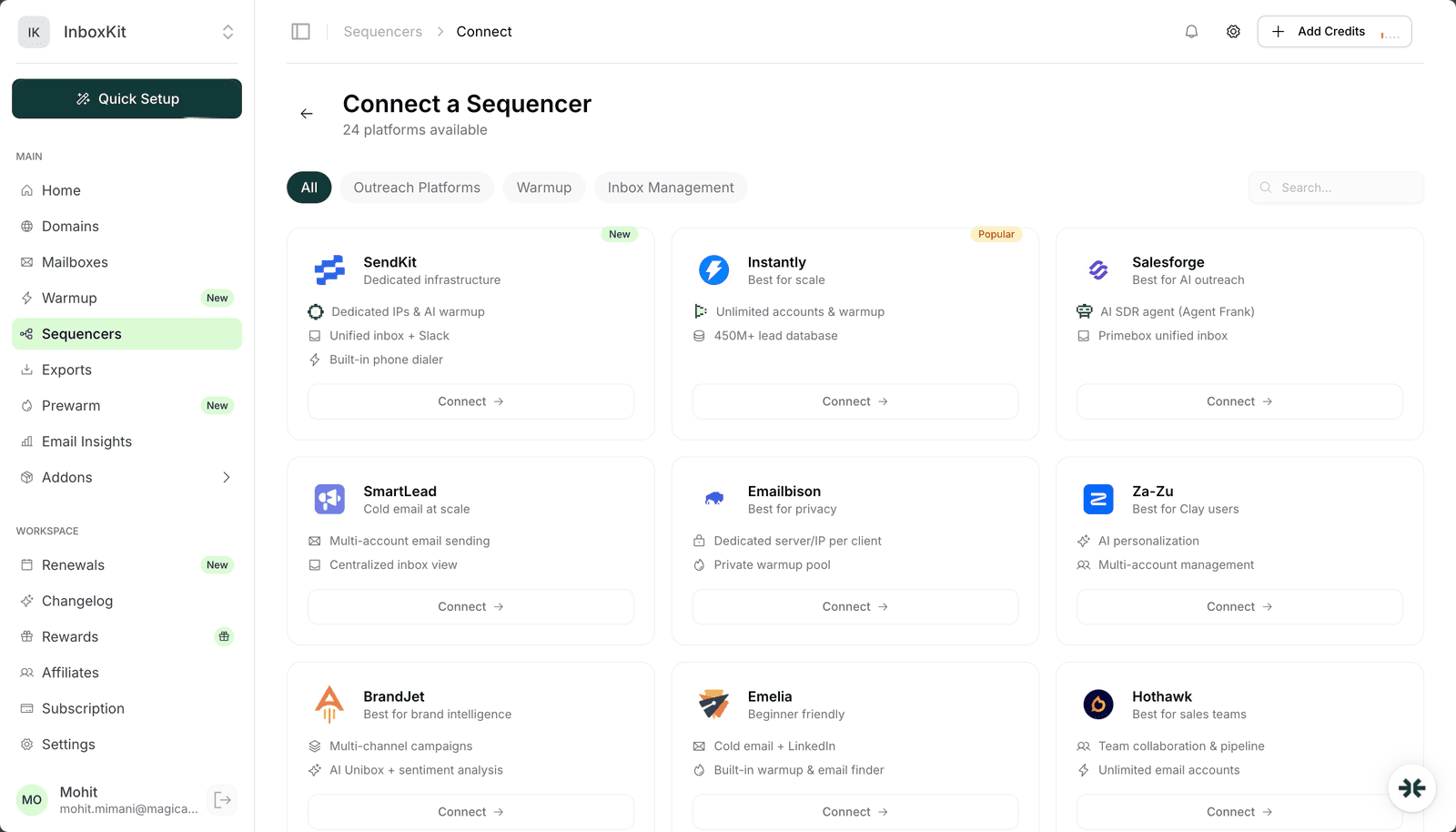
| 1 | InboxKit → Sequencers → Connect New Sequencer | 5 sec |
| 2 | Filter by Inbox Management and pick Master Inbox | 5 sec |
| 3 | Enter Email: your Master Inbox login | 5 sec |
| 4 | Enter Password: your Master Inbox password | 5 sec |
| 5 | Click Validate Credentials (below the credential fields) | , |
| 6 | InboxKit POSTs to /api/auth/sequencers/masterinbox/workspaces with the credentials | 1-3 sec |
| 7 | Master Inbox returns the list of workspaces the account belongs to | , |
| 8 | InboxKit populates the Workspace dropdown and shows a 'Credentials validated!' toast | 0.5 sec |
| 9 | Pick your target workspace from the dropdown | 5 sec |
| 10 | Click Connect Account (now enabled) | , |
| 11 | InboxKit pushes every selected mailbox into the chosen Master Inbox workspace | 20-40 sec |
| 12 | Redirect to /sequencers with success toast | , |
Total: about 2 minutes for a clean multi-step connect.
The important UX detail: the Connect Account button stays disabled until both the credentials are validated AND a workspace is selected. You cannot skip the validate step, because without it the dropdown is empty. This is enforced in the InboxKit connect flow via disabled={isSubmitting || (isMasterInbox && !credentialsValidated)}.
Once you pick the workspace and click Connect Account, InboxKit's API submits a payload to Master Inbox that includes:
| Field | Value | Notes |
|---|---|---|
| platform | masterinbox | Fixed |
| sequencer_login | Your Master Inbox email | From step 3 |
| sequencer_password | Your Master Inbox password | From step 4 |
| workspace_id | Selected workspace ID | From the dropdown in step 9 |
| auth_token | Session token | Returned by the workspace-lookup call, reused here |
| token_value | Auth token value | Same |
| mailbox_list | Every InboxKit mailbox selected for export | From InboxKit state |
Master Inbox validates the session token (to confirm the workspace selection wasn't tampered with client-side), then provisions each mailbox inside the target workspace. The auth_token reuse is important: it means you don't have to re-enter credentials between the workspace-lookup and the final Connect Account step, and Master Inbox doesn't rate-limit you for double-validating.
After this, Master Inbox pulls replies from every connected InboxKit mailbox via IMAP, classifies them with AI auto-labeling (positive / objection / OOO / unsub / bounce), and aggregates them into the unified view that is Master Inbox's whole value proposition. The AI auto-labeling is similar to what BrandJet's Unibox does on the outreach side, but Master Inbox lives on the inbox-management side and is meant for cross-tool aggregation.
The typical Master Inbox stack for an agency looks like this:
| Layer | Tool | Purpose |
|---|---|---|
| Mailboxes | InboxKit | Real Google Workspace / Microsoft 365 mailboxes |
| Warmup | InboxKit warmup add-on or TrulyInbox | Reputation building |
| Sender (Client A) | Instantly | Outbound sequences |
| Sender (Client B) | Smartlead | Outbound sequences |
| Sender (Client C) | Lemlist | Outbound sequences |
| Unified reply management | Master Inbox | Replies from all three senders in one view |
The Master Inbox integration's whole point is that last row. Instead of checking three separate sender Uniboxes for replies, your team reviews one Master Inbox feed. The AI auto-labeling means positive replies float to the top, OOO auto-replies are collapsed, and unsubs/bounces are auto-filed. For a 10-person sales team running outbound across multiple tools, this is a massive reduction in reply-management overhead. Manually checking 3 sender Uniboxes for 100 mailboxes' replies is a 30-minute daily task; Master Inbox drops it to ~5 minutes.
The specific failure modes for InboxKit → Master Inbox connections:
| Error | Cause | Fix |
|---|---|---|
| 'Validation Failed' after clicking Validate Credentials | Wrong password or 2FA on Master Inbox | Verify login in a clean browser tab |
| Workspace dropdown empty despite successful validation | Account has no workspaces yet, you never created one | Log into Master Inbox, create a workspace, come back |
| Connect Account button stays disabled after picking workspace | Session token expired (took >10 minutes) | Click Validate Credentials again to get a fresh token |
| Mailboxes pushed into wrong workspace | Picked the wrong entry from the dropdown | Master Inbox → (correct workspace) → Senders → Remove, then re-push from InboxKit |
| Replies show in underlying mailbox but not in Master Inbox | IMAP polling delayed, or OU-level IMAP disabled | Enable IMAP in admin.google.com → Gmail → End User Access, wait 2 minutes |
Session token expiration is subtle. If you validate credentials, then go to lunch, then come back and pick a workspace 20 minutes later, the auth_token has expired and the Connect Account submission will fail. Fix: click Validate Credentials again to get a fresh token, then immediately pick your workspace and submit. Don't walk away between those two steps.
Four smoke tests before using Master Inbox for real reply management:
Test 1: mailboxes appear in the correct workspace. After the connect completes, log into Master Inbox and open the workspace you selected. Confirm every InboxKit mailbox you exported is listed. If any are missing, they likely hit a rate limit: retry from InboxKit → Sequencers → Master Inbox → Retry Export.
Test 2: reply round-trip. Send yourself a test email from one of the InboxKit mailboxes (via the mailbox's Gmail webmail). Reply from a different address. Within 2 minutes, the reply should appear in Master Inbox's unified view inside the workspace you selected. If it doesn't, IMAP is broken.
Test 3: AI classification accuracy. Reply to the test email with distinct intents: 'interested' (positive), 'we just signed with X' (objection), 'out of office' (OOO). Check that Master Inbox's AI auto-labeling assigns the right labels. If labeling is wrong, check Master Inbox → Settings → Classification Rules.
Test 4: cross-tool aggregation. If you're running multiple senders (Instantly + Smartlead + Lemlist), send a test from each and confirm all three replies land in the same Master Inbox view. That's the whole point of the integration, if it works, you have a unified reply dashboard.
Yes, but you have to run the connect flow once per target workspace. InboxKit stores each sequencer connection separately, and you can have multiple active Master Inbox connections pointing to different workspaces. At export time, InboxKit asks which connection to use. This is how most agencies handle multi-client workflows.
The next export attempt to that workspace will fail with 'Workspace not found'. Existing mailboxes already pushed to the deleted workspace are also lost, Master Inbox purges senders when a workspace is deleted. Delete carefully, and re-run the InboxKit connect flow to push mailboxes into the replacement workspace.
No. Master Inbox only aggregates replies from email sequencers that it's connected to (Smartlead, Instantly, etc.). It does not read InboxKit's mailbox status, InfraGuard data, or warmup state: those stay inside InboxKit's dashboard. Master Inbox is strictly a reply-management layer.
Both use AI classification on replies, but BrandJet layers in brand-sentiment tracking on top (positive/negative brand perception over time). Master Inbox focuses purely on reply triage (positive / objection / OOO / unsub / bounce) without sentiment scoring. For pure reply routing, Master Inbox is simpler; for brand intelligence, BrandJet goes deeper.
Yes. They're not mutually exclusive: both read replies via IMAP independently. Your reps can work from either interface. Teams usually end up favoring one as the canonical view and treating the other as backup. If Master Inbox is your unified view, most agencies hide the sender Uniboxes by not giving reps access to those tools directly.
Free tools and pages that go with this guide.
 Reviews
 Mohit MimaniGuides
 Saksham JainGuidesMohit MimaniGuidesMohit MimaniGuidesMohit MimaniGuidesMohit Mimani
From $2.50/mailbox/mo. No plans or slots. Automated DNS, warmup, and InfraGuard monitoring included.