
LearnGuides
Connect InboxKit Mailboxes to ReachInbox in Under 4 Minutes

By Mohit MimaniPublished on: Apr 11, 2026 · 7 min read · Last reviewed: Apr 2026
TL;DR
ReachInbox ships an AI sequence generator with Onebox unified inbox and supports an optional workspace field. Here is the exact InboxKit connect flow for each case.
ReachInbox connects to InboxKit via email + password, with an optional workspace name field if your ReachInbox account has multiple workspaces. You enter the credentials, optionally type the workspace name, click Connect Account, and every selected InboxKit mailbox flows into ReachInbox as a new sender. The connect takes about 90 seconds.
ReachInbox's selling point is the AI sequence generator plus the Onebox unified inbox. The AI generator writes your first touch and follow-ups from a short campaign brief (similar to Salesforge's Agent Frank), and Onebox aggregates all reply traffic into a single view like Master Inbox does, but scoped to ReachInbox only. InboxKit's integration handles the mailbox provisioning side so you never have to hand-paste SMTP credentials.
ReachInbox's sequencer config in InboxKit has three fields:
| Field | Required | Purpose |
|---|---|---|
| sequencer_login | Yes | Your ReachInbox account email |
| sequencer_password | Yes | Your ReachInbox account password |
| sequencer_workspace | No | Your ReachInbox workspace name (if applicable) |
When to fill in the workspace field. If your ReachInbox account has only one workspace, leave it blank and ReachInbox defaults to that workspace. If your account has multiple workspaces (common for agencies running multiple clients), fill in the exact workspace name: case-sensitive, so the mailboxes land in the correct place. Misspelling the workspace name does not error out immediately; ReachInbox silently picks your default workspace instead, and you only notice because the mailboxes are in the wrong place.
This is different from Master Inbox's two-step credential-then-dropdown flow. ReachInbox does not expose an API to list workspaces before validation, so you have to know the workspace name ahead of time and type it manually. If you don't know it, check ReachInbox → Settings → Workspaces and copy the exact name.
Have these ready:
| Item | Where | Required |
|---|---|---|
| ReachInbox account (any paid plan) | reachinbox.ai | Yes |
| ReachInbox login email | , | Yes |
| ReachInbox password | , | Yes |
| Target workspace name | ReachInbox → Settings → Workspaces | Yes if multi-workspace |
| InboxKit mailboxes provisioned | InboxKit → Mailboxes | Yes |
| IMAP enabled on Google Workspace OU | admin.google.com → Gmail → End User Access | Yes |
| Optional: Google OAuth client configured in ReachInbox | ReachInbox → OAuth Setup | Optional. InboxKit push uses SMTP so OAuth is not required for the connect itself |
The OAuth client ID note. ReachInbox's sequencer config in InboxKit actually includes a reference to a Google OAuth client ID (549360251880-maeh4okn7btu9cjtf0l2bt1t5b22sbf8.apps.googleusercontent.com). This client ID belongs to ReachInbox's OAuth app and is used by ReachInbox internally when mailboxes connect via OAuth directly inside their dashboard. For the InboxKit push flow you don't need to do anything with it. InboxKit hands off mailboxes via SMTP credentials, and ReachInbox manages the OAuth layer if you later upgrade a specific mailbox to OAuth inside its own UI.
The full click path:
| Step | Action | Time |
|---|---|---|
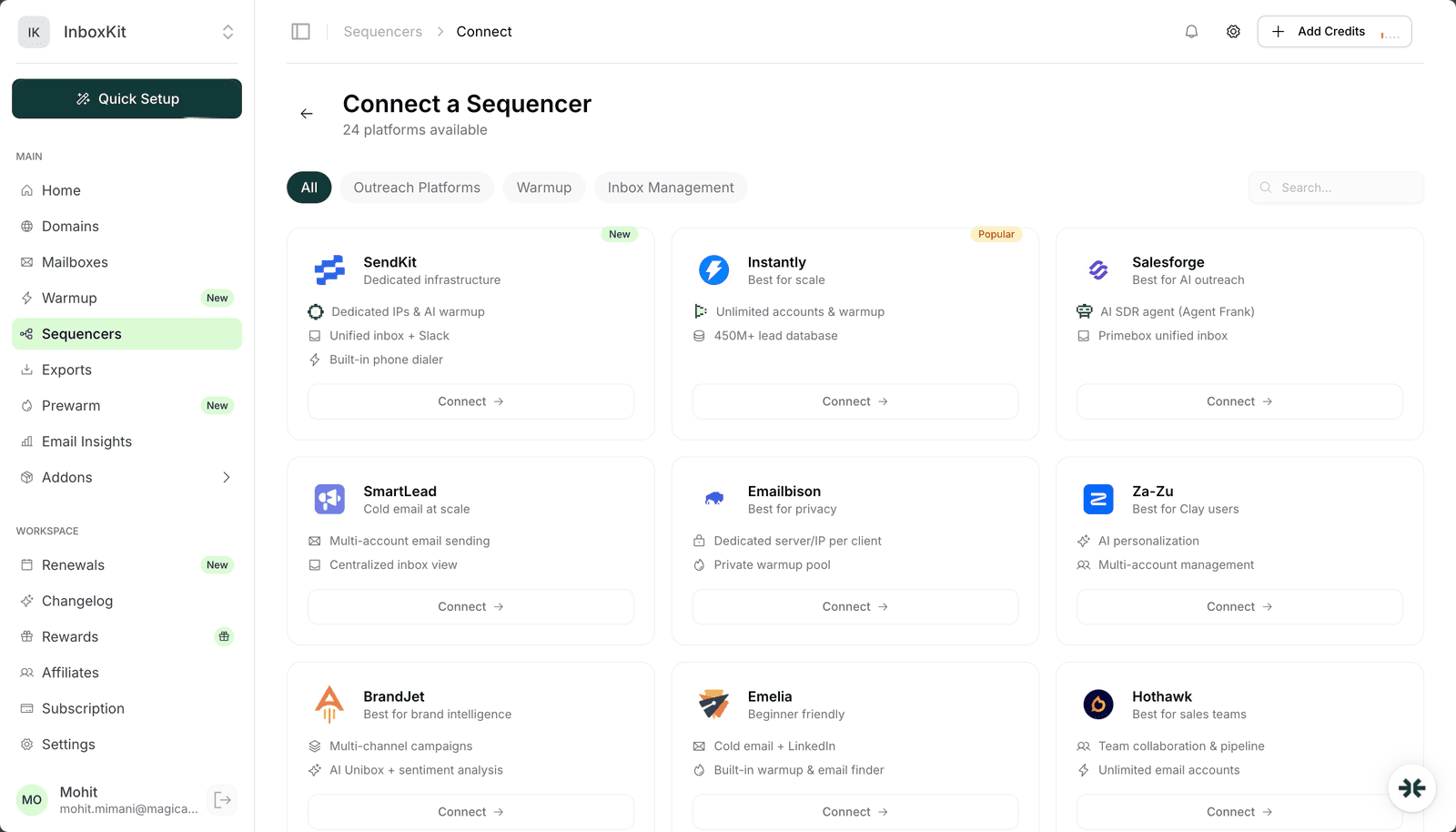
| 1 | InboxKit → Sequencers → Connect New Sequencer | 5 sec |
| 2 | Filter by Outreach category and pick ReachInbox | 5 sec |
| 3 | Enter Email: your ReachInbox login | 5 sec |
| 4 | Enter Password: your ReachInbox password | 5 sec |
| 5 | (Optional) Enter Workspace: exact workspace name if multi-workspace | 5 sec |
| 6 | Click Connect Account | , |
| 7 | InboxKit validates credentials via ReachInbox's auth endpoint | 1-3 sec |
| 8 | Selected InboxKit mailboxes pushed into the chosen ReachInbox workspace | 20-40 sec |
| 9 | Redirect to /sequencers with success toast | , |
Total: about 90 seconds for a single-workspace setup; 2 minutes if you need to look up the workspace name first.
ReachInbox's AI sequence generator writes email sequences from a short campaign brief: typically 2-3 sentences describing your offer, target audience, and desired action. It then rotates sending across every connected InboxKit mailbox using a round-robin distributor.
| Stage | What ReachInbox does | What InboxKit mailboxes do |
|---|---|---|
| Brief input | You type 2-3 sentences | , |
| AI generation | ReachInbox writes first touch + 2-3 follow-ups | , |
| Prospect matching | ReachInbox substitutes prospect-specific fields | , |
| Rotation assignment | ReachInbox picks which mailbox sends which email | InboxKit mailbox receives send command |
| SMTP send | ReachInbox sends via InboxKit mailbox SMTP | Mailbox relays through Google/Microsoft |
| Reply fetch | ReachInbox polls via IMAP | Mailbox delivers reply |
| Onebox aggregation | ReachInbox shows reply in unified view | , |
The round-robin rotation means your campaign's total daily volume is divided across the mailbox pool. If you connect 10 InboxKit mailboxes and run a campaign with 400 daily sends, each mailbox handles ~40/day. Stay below that ceiling or Google starts flagging the mailboxes as high-volume senders. See email sending volume limits guide for the full guardrails.
Onebox is ReachInbox's unified reply view. Every reply to any of your connected InboxKit mailboxes lands in Onebox automatically, and ReachInbox runs AI classification on each (positive / objection / OOO / unsub / bounce) similar to BrandJet's AI Unibox.
How Onebox pulls replies. ReachInbox polls each connected mailbox via IMAP every 30-60 seconds. The poll fetches new unread messages, runs them through the classifier, and displays them in Onebox with a classification label and the campaign they belong to. If a reply comes in but doesn't show up in Onebox within 2 minutes, IMAP is either disabled or throttled: see the Errors section below.
How Onebox compares to alternatives. If you're running multiple senders (ReachInbox + Smartlead + Instantly) and want one unified view across all of them, use Master Inbox instead, Onebox only aggregates within ReachInbox. If ReachInbox is your only sender, Onebox is the simpler choice because it's included in the plan and doesn't require a second tool.
The typical failure modes for InboxKit → ReachInbox connections:
| Error | Cause | Fix |
|---|---|---|
| 'Authentication failed' | Wrong password, 2FA on ReachInbox account | Verify login in a clean browser, disable 2FA during connect |
| Mailboxes land in the wrong workspace | Workspace name misspelled or case-mismatched | Fix workspace name, re-run the connect |
| 'IMAP handshake failed' on reply fetch | IMAP disabled at Google Workspace OU | Enable IMAP in admin.google.com → Gmail → End User Access |
| AI sequence generator skips merge tags | Prospect list missing the referenced fields | Add required columns to the prospect CSV before re-running |
| Some mailboxes missing from ReachInbox after export | Plan sender cap hit, or rate limit during batch import | Upgrade plan or export in groups of 10 with 60s between |
On the workspace silent-failure mode. ReachInbox does not validate the workspace name client-side, so a typo produces no error, your mailboxes just land in your default workspace instead. Double-check the workspace in ReachInbox immediately after the connect completes. If they're in the wrong place, remove them from ReachInbox → Workspace → Senders → Remove, fix the name in the InboxKit connect, and re-push.
Four smoke tests before loading a real campaign:
Test 1: correct workspace check. Log into ReachInbox and confirm the imported mailboxes are in the workspace you expected. If not, fix before running any sequence.
Test 2: mailbox test send. In ReachInbox → Accounts → (pick InboxKit mailbox) → Send Test. Confirm delivery in <30 seconds with DKIM passing.
Test 3: reply into Onebox. Reply to the test. Within 2 minutes, Onebox should show the reply with a classification label. If not, IMAP is broken.
Test 4: AI sequence pilot. Run a 5-prospect test sequence using ReachInbox's AI generator. Read each generated first touch to verify it makes sense. If the quality is off, tweak the brief inside ReachInbox and regenerate before scaling to a real campaign. And always run a seed-list inbox placement test: target 9/10+, escalate anything below 8/10.
Yes. Every email the AI generates gets sent from a real mailbox, so it consumes your daily send quota. Plan the campaign volume against the combined daily caps of your connected mailboxes. At 40/day per mailbox and 10 mailboxes, you have ~400/day in campaign headroom before you're at the reputation red line.
Yes, but you lose the rotation advantages. A single mailbox can only send ~40/day safely on email, so the AI sequence generator is capped at that volume. Single-mailbox ReachInbox setups are typical for solo founders or very early-stage outreach testing. Once you scale past 500/month, push more InboxKit mailboxes into the pool.
InboxKit uses SMTP credentials for the push itself, so ReachInbox's internal OAuth client ID changing does not affect the connect flow. It would only matter if you later reconnect a specific mailbox via OAuth inside ReachInbox's own UI: in which case ReachInbox handles the client ID internally. There's no InboxKit-side action needed.
Only if you're running ReachInbox as your single sender. Onebox aggregates replies within ReachInbox's own mailbox pool. Master Inbox aggregates replies across multiple senders (Smartlead + Instantly + ReachInbox + Lemlist, etc.). If you're a pure ReachInbox shop, Onebox is enough. If you run multiple senders, stack Master Inbox on top.
Yes, but be careful with apostrophes and slashes, ReachInbox's API sometimes normalizes them inconsistently. For the most reliable results, stick with letters, numbers, spaces, and dashes in your workspace names. If your workspace name has unusual characters, test the connect with a small mailbox batch first before running a full export.
Free tools and pages that go with this guide.
 Reviews
 Mohit MimaniGuides
 Saksham JainGuidesMohit MimaniGuidesMohit MimaniGuidesMohit MimaniGuidesSaksham Jain
From $2.50/mailbox/mo. No plans or slots. Automated DNS, warmup, and InfraGuard monitoring included.