
LearnGuides
Connect InboxKit Mailboxes to Woodpecker in Under 4 Minutes

By Mohit MimaniPublished on: Apr 11, 2026 · 7 min read · Last reviewed: Apr 2026
TL;DR
Woodpecker is the B2B sequencer of choice for teams that care about Bounce Shield and A/B testing. Here is how to push InboxKit mailboxes into Woodpecker in one connect, plus the agency panel flow.
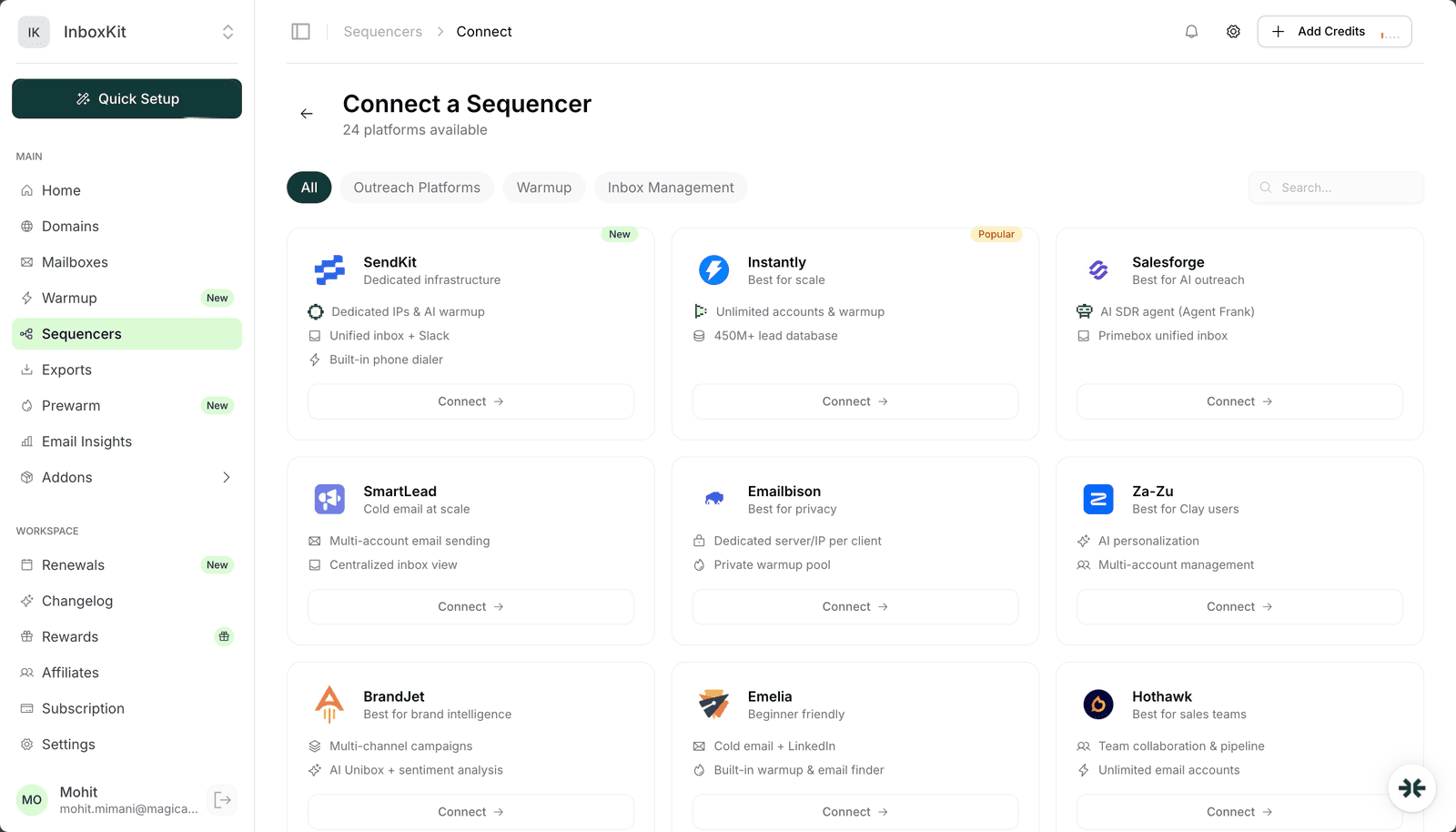
Woodpecker.co connects to InboxKit via email + password. You enter your Woodpecker login credentials in the InboxKit Sequencers Connect screen, InboxKit validates them against Woodpecker's auth endpoint, and every selected InboxKit mailbox is pushed into your Woodpecker workspace in a single call. Woodpecker's own connect flow then triggers its Bounce Shield check for each mailbox: a pre-send validation that catches invalid addresses and bad DNS before campaigns go live.
Total setup time is about 3 minutes. The main thing that trips up new users is Woodpecker's OAuth policy for Google-managed domains: like Lemlist, Woodpecker prefers Google OAuth over SMTP for Workspace accounts, and its connect docs walk through the consent screen explicitly (source).
Woodpecker's differentiator is Bounce Shield: a two-layer verification that runs on every outbound recipient before the SMTP send is attempted. Other sequencers rely on you running verification separately (Instantly Lead Finder, SmartLead SmartProspect). Woodpecker bakes it in.
| Sequencer | Bounce verification | When it runs |
|---|---|---|
| Woodpecker | Bounce Shield (built-in) | Per-recipient at send time |
| Instantly | Lead Finder (separate product) | At import |
| Smartlead | SmartProspect (add-on) | At import |
| Lemlist | Manual via partner tools | Before campaign |
| Reply.io | Manual via Reply's own email finder | At import |
This matters for InboxKit users specifically because Woodpecker's Bounce Shield uses SMTP handshake checks, which consume a tiny bit of sender reputation per verification. Don't enable it for a brand-new mailbox still in warmup: wait until day 30+ when the reputation can absorb the extra SMTP traffic. See email bounce rate benchmarks for what 'healthy' bounce rates look like.
Gather these:
| Item | Where | Required |
|---|---|---|
| Woodpecker account | woodpecker.co | Yes |
| Woodpecker login email | , | Yes |
| Woodpecker password | , | Yes |
| Google Workspace admin approved Woodpecker as a trusted app | admin.google.com → Security → API Controls | Yes (for Workspace) |
| IMAP enabled on Google Workspace OU | admin.google.com → Gmail → End User Access | Yes |
| SMTP AUTH enabled per-mailbox (Microsoft 365) | Exchange Admin Center → Manage email apps | Yes (for M365) |
| SPF, DKIM, DMARC, MX live | InboxKit Cloudflare automation | Yes (auto) |
| InboxKit mailboxes provisioned | InboxKit → Mailboxes | Yes |
The Workspace admin trap. Woodpecker's help docs describe the OAuth consent screen scope list: 'Once you click Add email, you will be asked to allow Woodpecker to access your Google Account and read, send, delete as well as manage your email' (source). If your workspace policy blocks third-party OAuth apps, the consent screen returns 'This app is blocked by your organization' and the mailbox stays disconnected. Fix: admin.google.com → Security → Access and data control → API controls → Manage Third-Party App Access → add Woodpecker as Trusted.
InboxKit already provisions SPF, DKIM, DMARC, and MX via Cloudflare in under 60 seconds. Verify manually via email authentication explained if needed, or see email domain setup checklist.
| Step | Action | Time |
|---|---|---|
| 1 | InboxKit → Sequencers → Connect New Sequencer | 5 sec |
| 2 | Filter by Outreach category and pick Woodpecker | 5 sec |
| 3 | Enter Email: your Woodpecker login | 5 sec |
| 4 | Enter Password: your Woodpecker password | 5 sec |
| 5 | Click Connect Account | , |
| 6 | InboxKit validates credentials against Woodpecker | 2-3 sec |
| 7 | Selected InboxKit mailboxes push into Woodpecker | 30-60 sec |
| 8 | Redirect to /sequencers with success toast | , |
Total: about 90 seconds in InboxKit. After the push, open Woodpecker → Email Accounts to approve the per-mailbox OAuth consent for each one. Woodpecker uses OAuth for Google Workspace mailboxes by default and falls back to SMTP/app-password only if you explicitly pick that path inside its own 'Connect via SMTP' screen.
A tutorial video from Woodpecker walks through the full Google/Office 365/Exchange connection visually (source).
After the InboxKit push, Woodpecker lists each mailbox with a 'Pending authorization' state. You click Authorize per mailbox and approve Google or Microsoft consent.
| Step (inside Woodpecker) | Action |
|---|---|
| 1 | Log into app.woodpecker.co → Email Accounts |
| 2 | Find the newly-pushed InboxKit mailbox in 'Pending authorization' |
| 3 | Click Authorize → Continue with Google (or Microsoft) |
| 4 | Sign in as the mailbox owner |
| 5 | Grant the four scopes Woodpecker lists (read, send, delete, manage) |
| 6 | Woodpecker runs its connection test |
| 7 | Status flips from 'Pending' to 'Active' |
Why Woodpecker asks for 'delete' scope. Woodpecker needs delete permission to handle your Bounce Shield false-positive cleanup and to remove processed bounce notifications from the inbox. It does not delete your real inbox traffic. This is the scope that makes Google Workspace admins nervous and sometimes blocks the connect. If your admin refuses to approve 'delete' scope, you'll need to use Woodpecker's SMTP/app-password fallback path instead of OAuth.
Woodpecker also runs on IMAP for reply sync, which means the Google Workspace OU must have IMAP enabled. This is the same setting as the Instantly integration and the Smartlead integration.
When the Workspace admin refuses to approve Woodpecker's OAuth scopes, fall back to app password + SMTP. Woodpecker's help center has a tutorial walking through the SMTP connection for both Google and Microsoft 365.
Generate a Google app password first:
| Step | Action |
|---|---|
| 1 | Sign in to myaccount.google.com as the mailbox owner |
| 2 | Security → confirm 2-Step Verification is ON |
| 3 | Search 'App passwords' |
| 4 | App: Mail. Device: Other → type 'Woodpecker' |
| 5 | Copy the 16-character password (format xxxx xxxx xxxx xxxx) |
Connect via SMTP inside Woodpecker:
| Step | Action |
|---|---|
| 1 | Woodpecker → Email Accounts → Add Account → Other SMTP Provider |
| 2 | Email: the InboxKit mailbox address |
| 3 | Username: same as email |
| 4 | Password: the 16-character app password |
| 5 | SMTP host: smtp.gmail.com, port: 465 (SSL) or 587 (TLS) |
| 6 | IMAP host: imap.gmail.com, port: 993 |
| 7 | Click Test connection → Save |
Why 2-Step Verification matters. Google removed 'Less secure app access' in 2022. The only way to generate an app password is to have 2SV enabled first. This is the single most common reason new users get stuck on the SMTP fallback path. Source: Google App Passwords docs.
For Microsoft 365, the SMTP fallback is smtp.office365.com:587 with the account password (not an app password), and the tenant admin must enable per-mailbox SMTP AUTH in Exchange Admin Center → Manage email apps → Authenticated SMTP. Source: Microsoft Authenticated SMTP.
Woodpecker's B2B angle includes an agency panel that lets you manage multiple clients' workspaces under a single login. If you're running InboxKit mailboxes across several client campaigns, the flow is slightly different:
| Step | What changes | Notes |
|---|---|---|
| 1 | Log into Woodpecker Agency Panel (not the standard login) | Agency seat required |
| 2 | Pick the client workspace in the sidebar | Each client has an isolated mailbox list |
| 3 | Push InboxKit mailboxes into that workspace via the same InboxKit Sequencers connect | Same flow, different target |
| 4 | Mailboxes isolated per client in the agency panel view | No cross-client visibility |
This is how agencies run 10+ client campaigns without cross-contaminating mailbox pools. The InboxKit side doesn't change, you push from InboxKit to Woodpecker as usual and Woodpecker routes to whichever client workspace is active in your agency panel at connect time. For deeper agency workflow guidance see best email infrastructure for agencies and agency workflows guide.
Woodpecker's default daily limit is too aggressive for brand-new mailboxes. Use this ramp:
| Mailbox age | Woodpecker daily limit | Warmup messages/day | Notes |
|---|---|---|---|
| Day 1-14 | 0 | 5-15 | Warmup only |
| Day 15-30 | 15 | 15-20 | First real campaigns, low risk |
| Day 31-45 | 25 | 20 | Ramp aggressively |
| Day 46-60 | 35 | 20-25 | Near steady state |
| Day 60+ | 40-50 | 25 | Steady state |
Woodpecker's own blog confirms the Gmail ceiling: 'Free Gmail accounts: Up to 100 messages/day via SMTP, and up to 500 via browser. Google Workspace (G Suite) accounts: Up to 2,000 messages/day' (source). The practical email ceiling stays at 40-50 per mailbox regardless of the hard cap. See email sending limits Google vs Microsoft and scale email 100 to 10000 for the full math.
Warmup pairing. Woodpecker does not include a native warmup product. Pair it with InboxKit's isolated warmup ($3/mailbox/month) or a free network like TrulyInbox. Don't run two warmup systems on the same mailbox.
| Error | Cause | Fix | Frequency |
|---|---|---|---|
| 'This app is blocked' on OAuth | Workspace admin policy blocks third-party apps | admin.google.com → API Controls → whitelist Woodpecker | 28% |
| 'Delete scope refused' | Admin approved other scopes but refused delete | Fall back to SMTP + app password path | 20% |
| 'Authentication failed' on SMTP 465 | Used account password instead of 16-char app password | Generate app password with 2SV enabled | 18% |
| 'IMAP handshake timeout' | IMAP disabled for Google Workspace OU | admin.google.com → Gmail → End User Access → enable IMAP | 18% |
| 'SmtpClientAuthentication disabled' on Microsoft 365 | Per-mailbox SMTP AUTH off | Exchange Admin → Manage email apps → enable Authenticated SMTP | 16% |
One more footgun: Bounce Shield runs pre-send SMTP handshakes that consume a small amount of reputation per check. If you enable Bounce Shield on a mailbox still in its first 30 days, the extra SMTP traffic can push it over a reputation threshold and trigger Google throttling. Leave Bounce Shield off until day 30+. See the Reddit thread on Woodpecker deliverability for real-user context on SMTP behavior vs native Gmail.
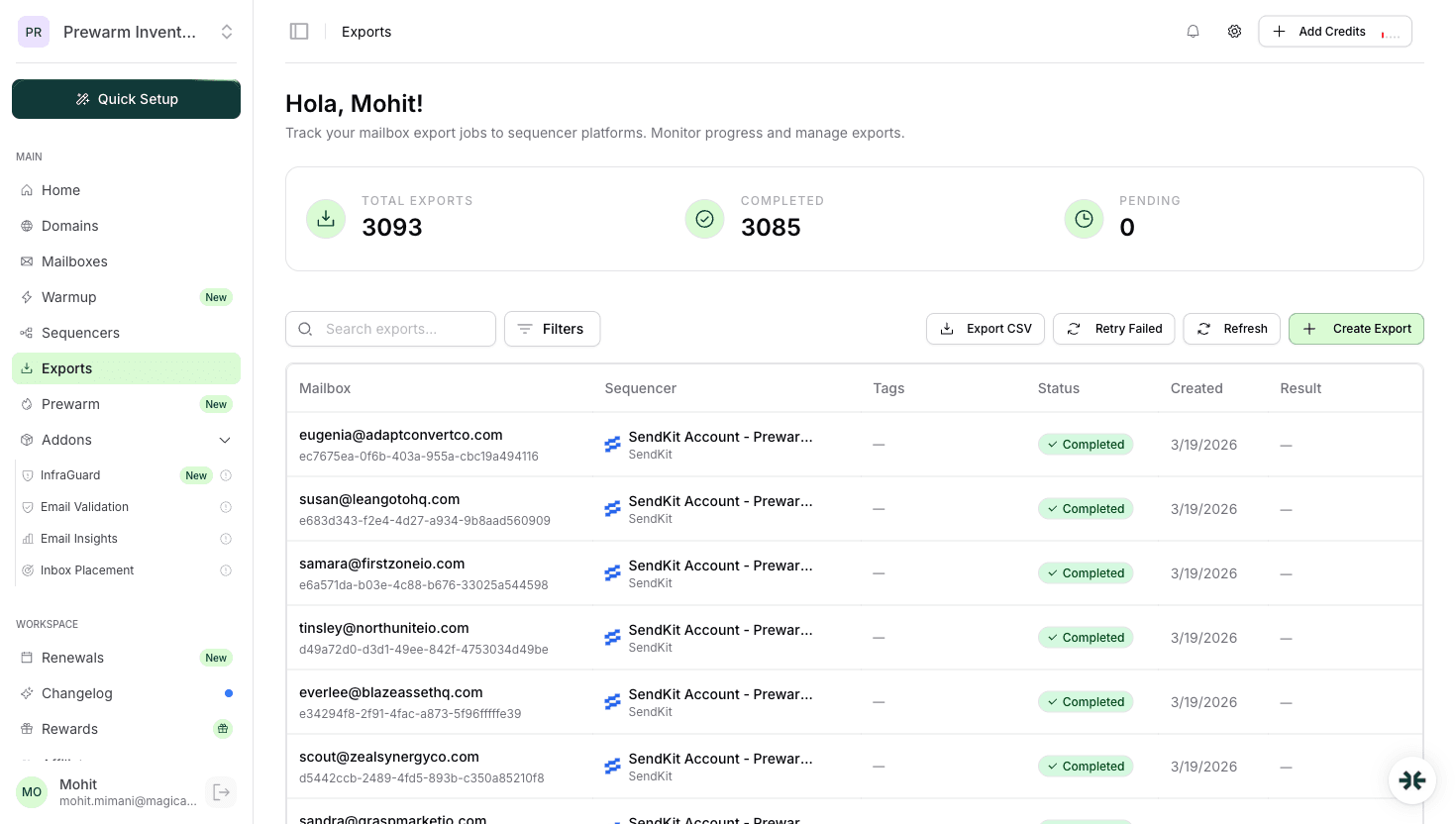
Test 1: Mailbox shows 'Active' in Woodpecker. Woodpecker → Email Accounts. Every InboxKit mailbox you pushed should show 'Active' (or 'Pending' if you haven't approved OAuth yet) within 60 seconds of the InboxKit Exports confirmation.
Test 2: Send a test email. Woodpecker → Email Account → Send test. Expect delivery in your inbox within 30 seconds. If it fails, SMTP is broken.
Test 3: Reply sync via IMAP. Reply to the test email. Check Woodpecker → Inbox. If the reply shows within 2 minutes, IMAP is healthy. If not, IMAP is silently broken even though the mailbox status says 'Active'.
Test 4: Bounce Shield dry run. If you enabled Bounce Shield, import a test prospect list with 2-3 known-invalid addresses. Woodpecker should flag them before send. If everything passes Bounce Shield, the check isn't running.
For end-to-end deliverability validation, run a Mail Tester test after 14 days of warmup. See inbox placement testing explained.
Because Bounce Shield needs to delete bounce notifications and false-positive mailbox entries during campaign run. It does not delete your regular inbox traffic. Workspace admins who refuse to approve this scope need to use the SMTP + app password fallback path instead.
No. Two sequencers racing on the same mailbox will hit Google's per-minute SMTP limits and fight over IMAP read flags. Split your mailbox pool if you need to A/B test two sequencers: never share a single mailbox between two.
A small amount, yes. Bounce Shield runs pre-send SMTP handshakes that consume a tiny bit of sender reputation per check. Leave Bounce Shield disabled on mailboxes younger than 30 days. Enable it only when the mailbox is through the ramp phase and has established reputation.
No. Woodpecker focuses on sending and Bounce Shield. Pair it with InboxKit's isolated warmup at $3/mailbox/month or a free network like TrulyInbox. Don't run two warmup systems on the same mailbox.
The agency panel lets you manage multiple client workspaces under a single Woodpecker login. When pushing InboxKit mailboxes via the Sequencers Connect screen, pick the target client workspace in Woodpecker's sidebar first, then run the InboxKit push as usual. Mailboxes land in whichever workspace is active in the agency panel at connect time.
Free tools and pages that go with this guide.
 Reviews
 Mohit MimaniGuides
 Saksham JainGuidesSaksham JainComparisonsMohit MimaniEducational
 Rahul LakhaneyEducationalRahul Lakhaney
From $2.50/mailbox/mo. No plans or slots. Automated DNS, warmup, and InfraGuard monitoring included.